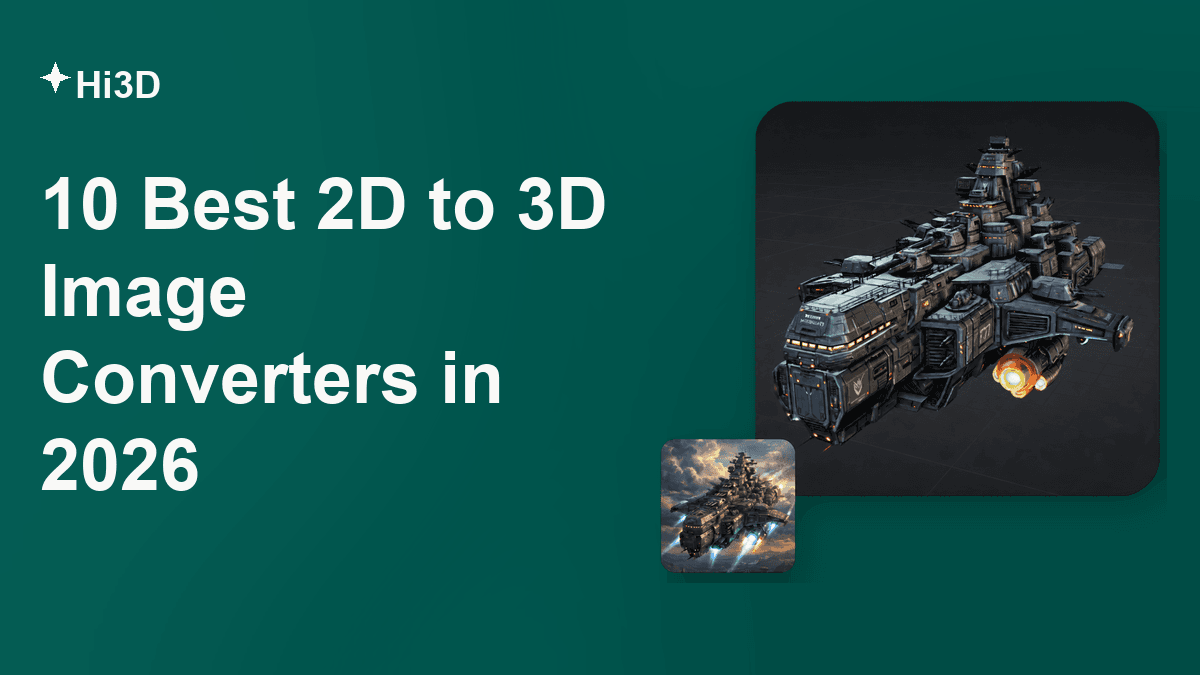
“2D to 3D” can mean four different things: a dimensional filter, depth map, stereoscopic image, or rotatable mesh. This guide identifies what ten popular tools actually create. Hi3D is our best overall choice for turning a clear reference into a detailed, textured model, while Canva suits quick 3D-style graphics and IMAGEtoSTL handles simple printable reliefs.
What Does a 2D to 3D Image Converter Actually Create?
Conversion software interprets depth, shape, or viewpoint information missing from a flat source. The important question is not simply whether the result “looks 3D,” but whether it contains actual geometry. Only the last of these four outputs is a freely rotatable model.
An AI 2D to 3D image converter can estimate missing depth and unseen surfaces, but its output is a plausible reconstruction rather than a measured scan.
1. 3D Photo or Parallax Effect
A 3D photo is still a flat image or animation. The software separates foreground, middle ground, and background, then adds shadows, relighting, perspective, or slight camera motion. It can look convincing in a presentation or social post, but you cannot turn it around to inspect the back.
2. Depth Map
A depth map is a grayscale image in which each pixel represents estimated distance from the camera. White may represent near surfaces and black far surfaces, or the mapping may be reversed. It can drive displacement, focus effects, fog, compositing, or a relief surface.
Depth maps are useful when the camera view stays fixed. They are less useful for a complete object because one image cannot reveal the hidden back, underside, or occluded surfaces. A clean silhouette and strong separation between subject and background usually produce a better estimate than a cluttered photograph.
3. Stereoscopic 3D Image
A stereoscopic result creates separate left-eye and right-eye views. The small viewpoint difference produces a sense of depth when viewed through compatible glasses, a headset, or a stereoscopic display. This is real binocular depth, but it is not the same as a modeled object.
Use this method for immersive viewing or 3D cinema-style presentation. Do not choose it when the deliverable must be an STL for printing or a GLB for the web. A stereoscopic pair remains tied to its original viewing angle.
4. Real 3D Model
A real model contains geometry: vertices, edges, and faces that define a surface. It may also include UV coordinates, textures, PBR material maps, and a watertight volume for printing. AI model generators infer the unseen parts of an object from the visible evidence; that inference is useful, but it is not measurement.
A 3D to 2D image converter performs the reverse operation: it renders or projects a 3D scene into a flat image. That tool cannot recover editable geometry from an ordinary photo, so it should not be confused with the products compared below.
How to Choose the Right 2D to 3D Conversion Method
The right tool produces the file your next application can use. Before uploading anything, check these three points.
1. Start with the Required Deliverable
For a thumbnail, slide, or ad, export a 3D-style JPG or PNG. For a web viewer or AR preview, look for GLB or USDZ. Game and animation work commonly benefits from OBJ or FBX plus textures, while 3D printing normally starts with STL or 3MF.
Do not rely on the word “3D” in a landing-page headline. Check the download menu. If the only outputs are JPG, PNG, PDF, or MP4, the tool makes a visual effect rather than a model. If you need to rotate the object, inspect hidden sides, edit the mesh, or send it to a slicer, choose a true 2D image to 3D image converter with mesh exports.
2. Match the Input to the Reconstruction Problem
Single-image AI works best with one fully visible subject, a plain or contrasting background, even lighting, and a readable silhouette. Cropped limbs, glass, reflections, motion blur, overlapping objects, and deep shadows make the hidden geometry more ambiguous. A front three-quarter view often communicates more form than a perfectly flat front view.
If accuracy around all sides matters, use a multi-view workflow or provide several reference angles. A one-photo generator must invent what it cannot see. That can be acceptable for a stylized figurine or concept asset, but not for a replacement part that must fit another component.
3. Count the Work After Generation
A fast preview is not necessarily a finished asset. Check whether the mesh is watertight, whether thin parts survive, whether textures align across hidden areas, and whether the polygon count suits the destination. Game assets may need retopology, UV cleanup, rigging, or lower polygon counts. Prints need correct scale, wall thickness, supports, and manifold geometry.
Also inspect the actual free allowance. A free 2D to 3D image converter may limit texture quality, downloads, commercial rights, or export formats rather than generation itself. Credit prices and plan rules change frequently, so confirm them before starting a batch.
Using a 2D to 3D image converter online avoids local installation, but it also means uploading the source to a cloud service. Anyone seeking a free online 2D to 3D image converter should check retention, licensing, and download limits—not just whether the Generate button works. To try a 2D to 3D image converter free of charge, begin with a non-sensitive sample rather than a client asset.
10 Best 2D to 3D Image Converters
The following score is an editorial workflow-fit score, not a hands-on quality benchmark. It applies the same 100-point rubric to every tool: true 3D usefulness (30), conversion control (15), export and downstream compatibility (20), texture or printing workflow (15), ease of access (10), and free-tier value/licensing clarity (10). Product documentation and public pricing were checked on September 20, 2026. The detailed list follows the requested product order rather than sorting unlike output categories into a misleading quality ladder.
Each review explains its score.
| Tool | What it actually creates | Free access | Score | Best for |
|---|---|---|---|---|
| Hi3D | Full textured 3D model | 100 lifetime credits | 93 | Best overall image-to-model workflow |
| Canva | 3D-style image | Free plan; AI limits apply | 69 | Marketing and presentation graphics |
| ElevenLabs | 3D-style PNG or video | Limited free image generations | 66 | Visuals with voice or audio |
| AI3DGen | Full 3D model | Free Lite model | 78 | No-sign-up model experiments |
| IMAGEtoSTL | Extruded or height-map mesh | Free | 74 | Logos, reliefs, and simple prints |
| Neural4D | Full textured 3D model | 50 credits weekly | 87 | Export-heavy production workflows |
| Fotor | 3D-style JPG | Some effects free | 64 | Stylized portraits and concepts |
| EaseMate AI | 3D-style image | Page showed zero-credit generation | 61 | Casual style experiments |
| Meshy | Full textured 3D model | 100 monthly credits | 89 | Game assets and rapid iteration |
| Magic3D | Full textured 3D model | 100 sign-up credits | 83 | Browser-based multi-format models |
1. Hi3D: Best Overall 2D to 3D Model Converter
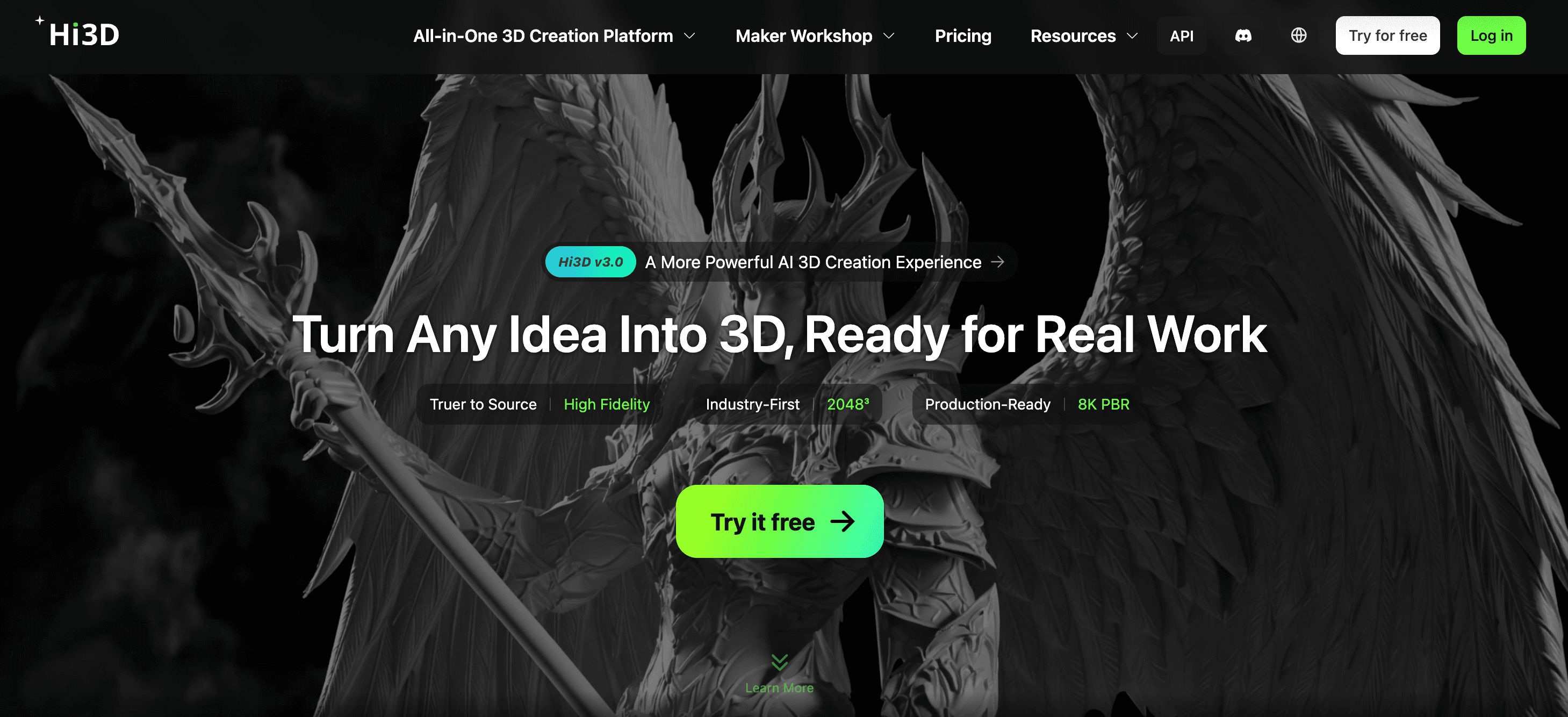
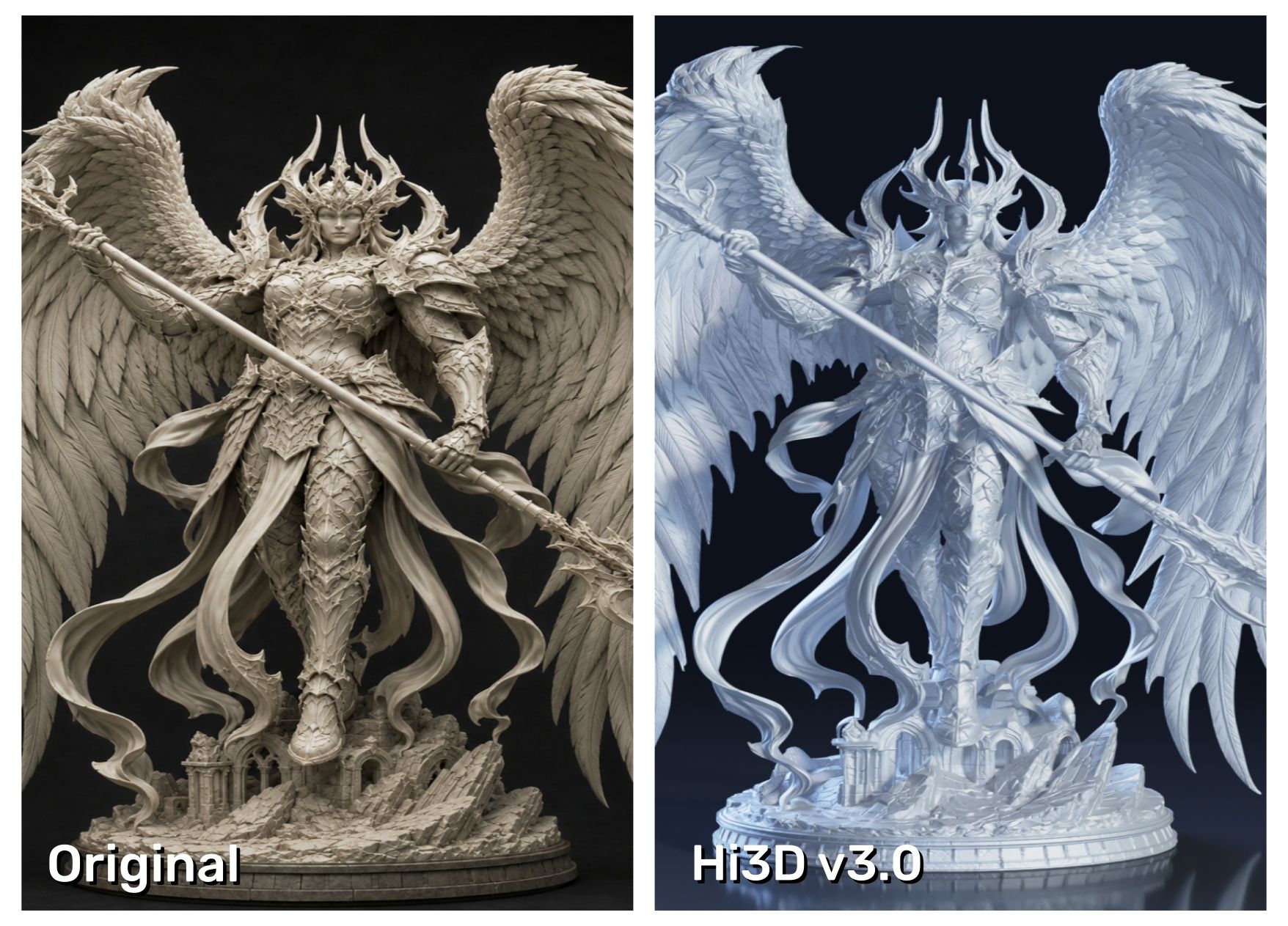
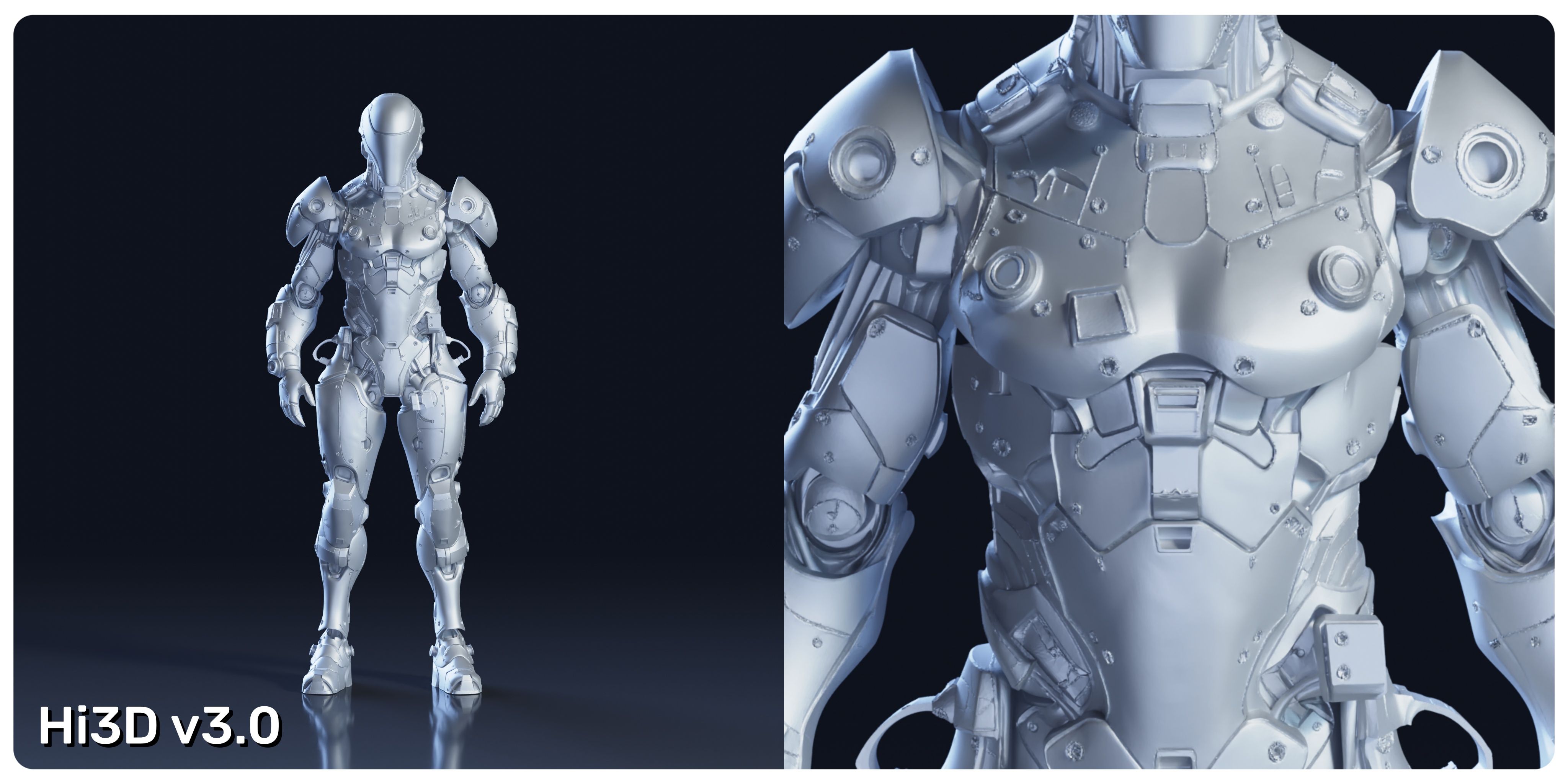
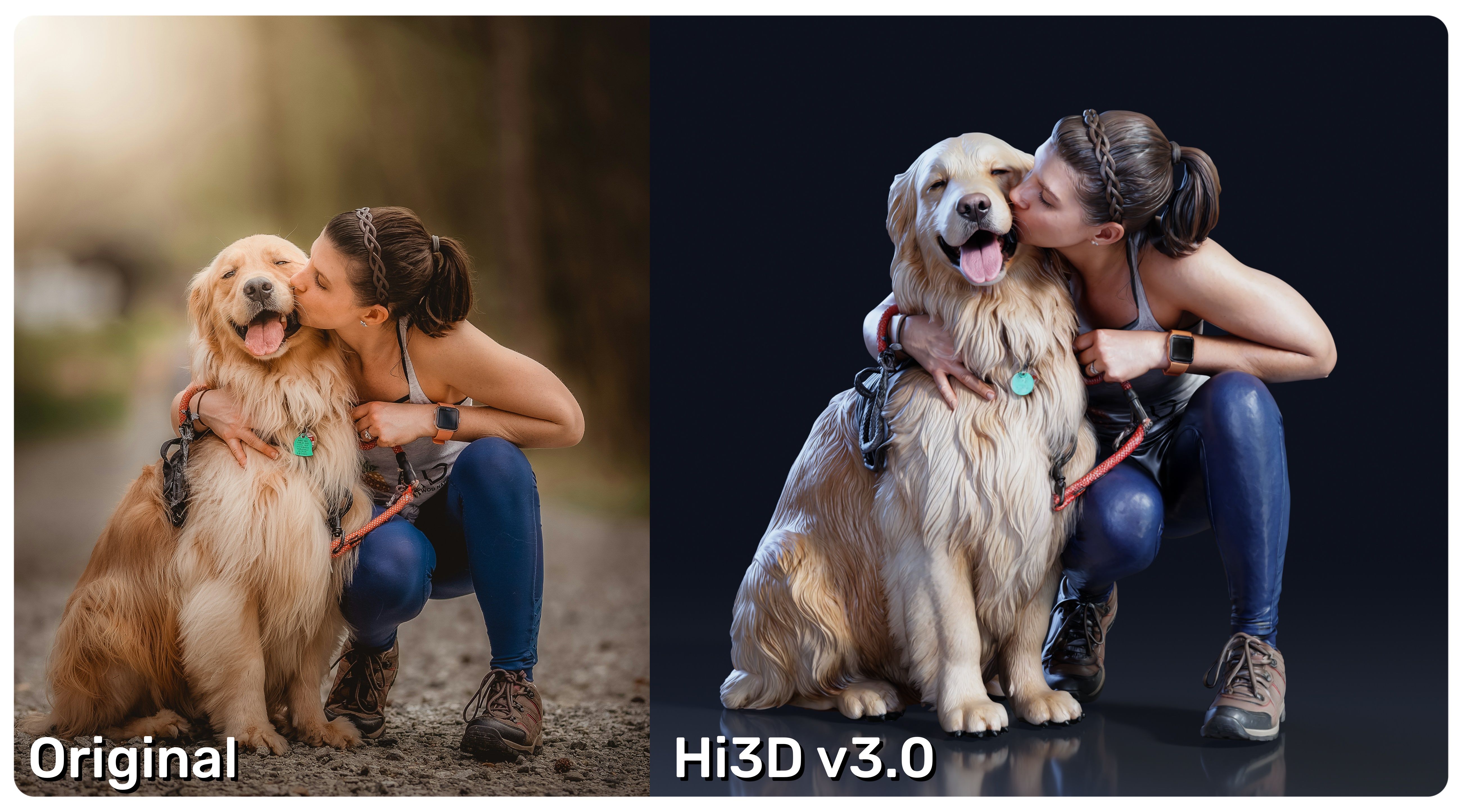
Hi3D is a one-stop AI 3D creation platform designed for beginners who want a guided workflow and experienced creators who need a faster starting point. Its image to 3D workflow reconstructs form from one or more references, rather than merely adding shadows to the original picture. Hi3D v3.0 supports geometry up to 2048³ voxel-level resolution and 8K PBR textures, with stronger completion of occluded areas. Those features make it particularly relevant to detailed characters, sculptures, lettering, game props, and textured collectibles.
The surrounding workflow is a major reason Hi3D ranks first here. It can generate geometry alone or a textured model, export common formats including STL, OBJ, 3MF, GLB, and USDZ, and continue into split-to-print and multi-color preparation. Pricing page lists 100 lifetime credits on the free plan, up to ten asset generations, and limited downloads, so it is genuinely possible to evaluate the workflow before paying.
Pros:
- Produces editable, rotatable geometry instead of a flat 3D effect.
- Hi3D 3.0 targets fine geometry, hidden-structure completion, and 8K PBR texture detail.
- Extends beyond generation into texture, relief, split-print, multi-color, and slicer-oriented workflows.
- Broad export support makes the result useful for web, DCC, and printing pipelines.
Cons:
- The higher-detail Master mode uses substantially more credits than Quality mode.
- Ambiguous hidden surfaces can still require inspection and manual cleanup.
Recommended for:
- Creators who want the best overall balance of image fidelity, real 3D output, texturing, and print preparation in one browser-based workspace.
2. Canva: Best for Fast 3D-Style Marketing Graphics
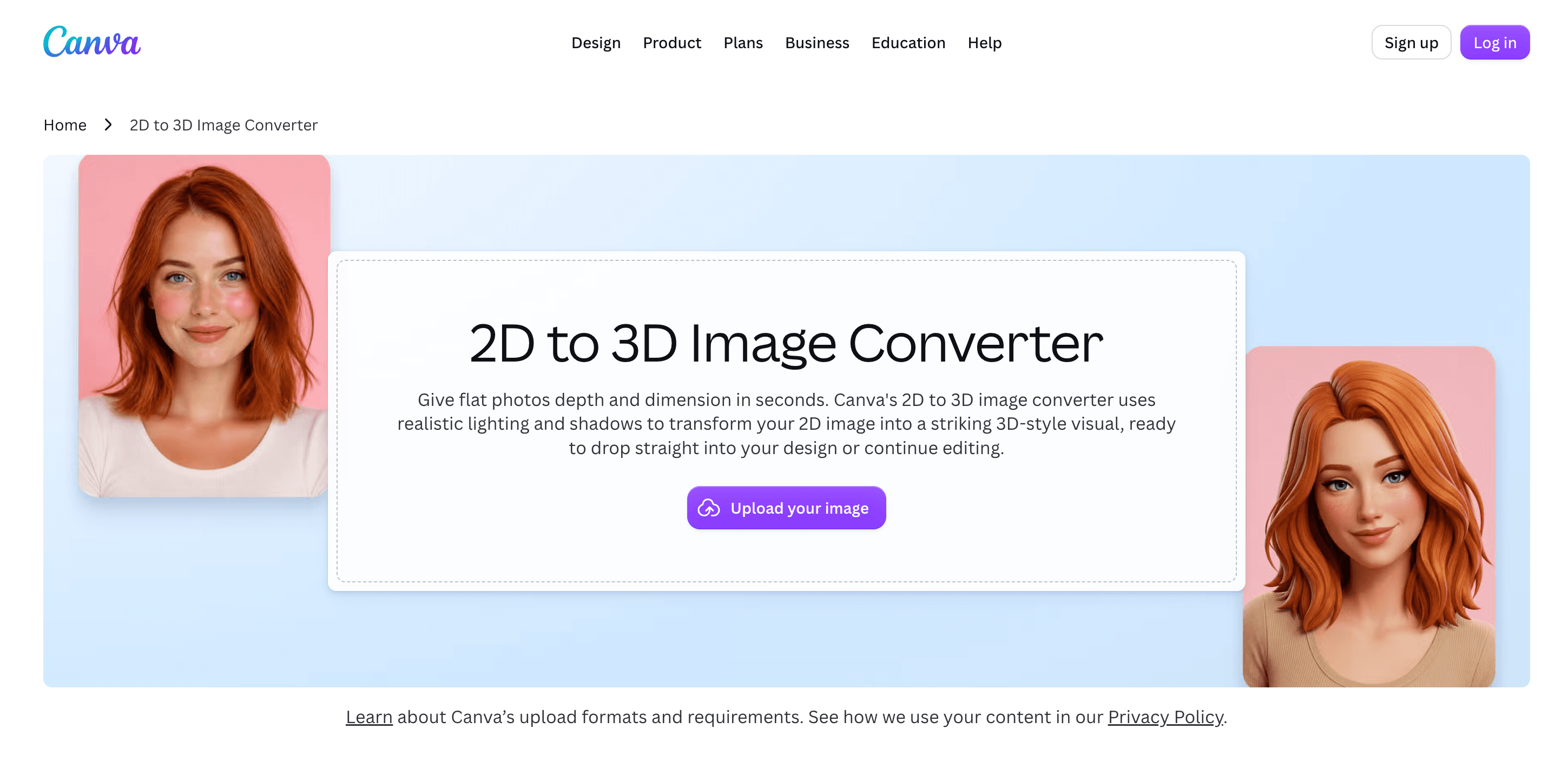
Canva's converter analyzes shapes and contours, then adds simulated depth, lighting, and shadows. The result drops directly into Canva for layouts and can be exported with the broader design as JPG, PNG, PDF, or PPTX. This makes Canva convenient for social posts, thumbnails, product promotions, and presentation heroes—not for Blender or a 3D printer.
Pros:
- Familiar drag-and-drop workflow with almost no learning curve.
- Keeps the converted visual inside a full design, collaboration, and export environment.
- The free plan includes core design access and limited AI usage.
Cons:
- Creates a 3D-style visual, not a mesh with a back or editable topology.
- AI allowances are pooled, so other Canva AI tasks can consume the same limit.
- Advanced editing, storage, and premium assets may require Canva Pro.
Recommended for:
- Marketers, presenters, and social creators who need depth on a flat graphic rather than a real 3D asset.
3. ElevenLabs: Best for 3D-Style Images with Voice
ElevenLabs' converter belongs to ElevenCreative. It turns an uploaded image into a new 3D-style render using selectable image models, then lets the creator add narration, multilingual voice-over, lip-sync, music, or sound. The page documents PNG image and MP4 video output, which confirms that this is a multimedia visual workflow rather than a mesh generator.
Pros:
- Combines image transformation, voice, sound, and video in one creative workspace.
- Multiple image models provide stylistic choice without separate subscriptions.
- The free plan supports limited daily image generation without a credit card.
Cons:
- PNG and MP4 outputs cannot be edited as OBJ, GLB, FBX, or STL geometry.
- Shared credits can become harder to budget when audio and image tasks mix.
- Commercial rights and video generation require an eligible paid plan.
Recommended for:
- Storytellers and campaign teams building narrated or talking 3D-style visuals, not printable models.
4. AI3DGen: Best No-Sign-Up Free Model Trial
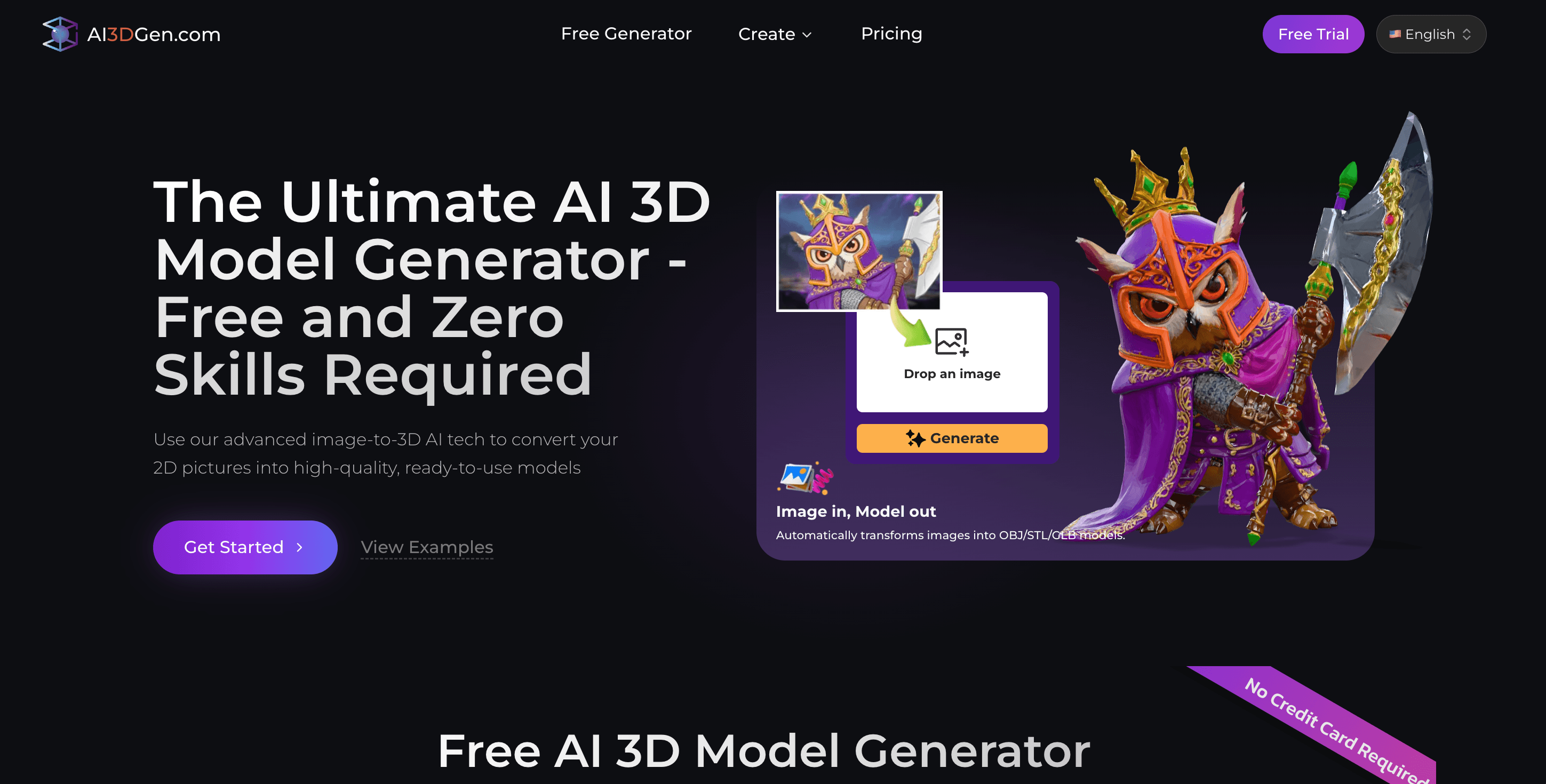
AI3DGen offers a quick path from JPG or PNG to a genuine 3D model. Its public comparison is unusually direct about the free tier: the Lite model favors speed, while the free result can have rough geometry, weak fine detail, and little or no useful texture. Paid Pro and Ultra modes target sharper geometry and materials, and the plan page distinguishes the free OBJ export from broader paid OBJ, GLB, and STL support.
Pros:
- Free Lite conversion can be tried without creating an account.
- Produces real geometry rather than a relit 2D picture.
- Paid modes provide a straightforward upgrade path for texture and detail.
Cons:
- Free meshes are intentionally lower quality and can look soft or blocky.
- The free export is more restrictive than the paid multi-format workflow.
- Detailed or production-oriented results quickly move into paid modes.
Recommended for:
- Hobbyists who want to confirm that image-to-mesh AI fits an idea before registering or paying.
5. IMAGEtoSTL: Best Free Converter for Reliefs and Logos
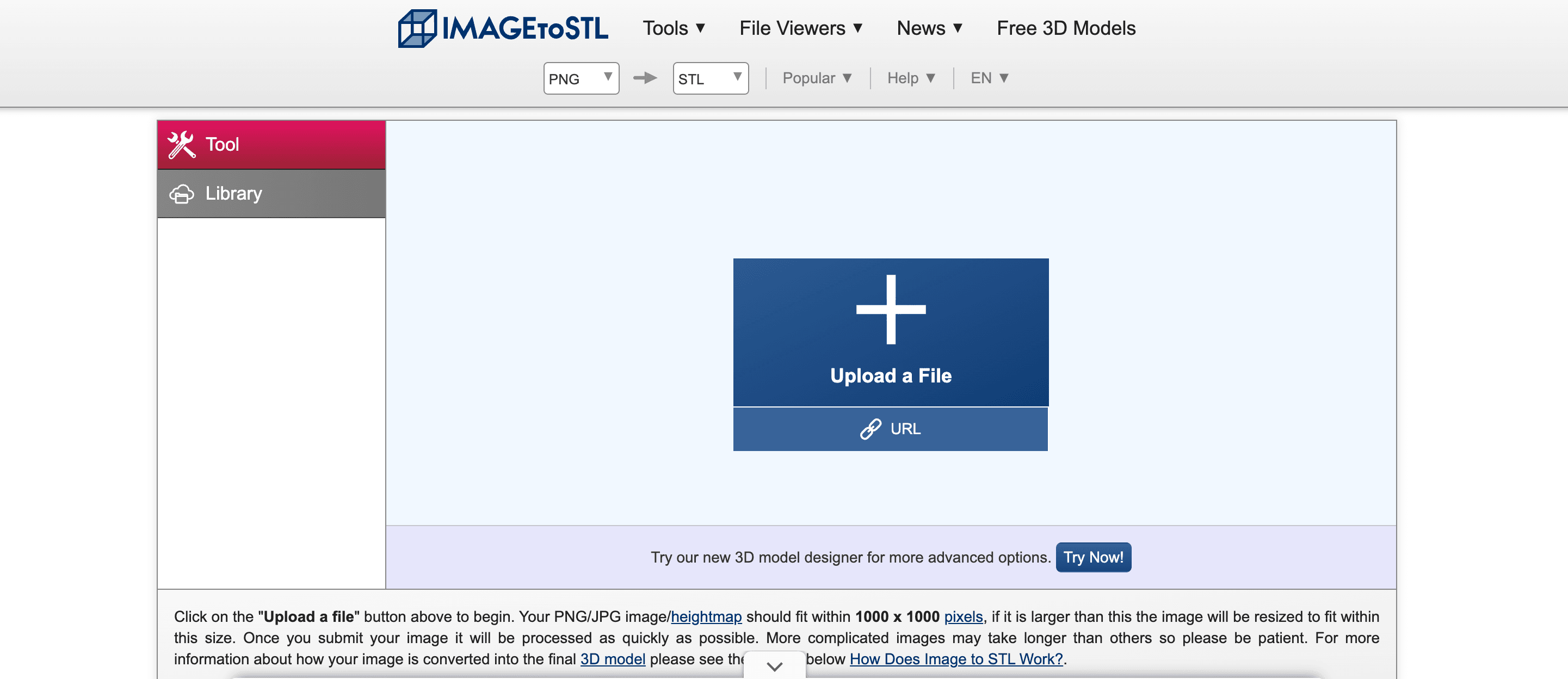
IMAGEtoSTL is not a generative object reconstruction system. It converts PNG or JPG pixels into an extrusion or a height-map surface, with controls for detail, dimensions, base shape, background removal, inversion, and grayscale-to-height mapping. That predictable approach works well for logos, keyrings, lithophane-like reliefs, CNC surfaces, and simple printing projects.
Pros:
- Free, focused, and usable without an account or credit system.
- Variable-depth controls make grayscale-to-height behavior understandable.
- STL output fits common slicers and 3D printing workflows.
Cons:
- It cannot infer a complete character or object from a single photograph.
- Images over 1000 × 1000 pixels are resized before conversion.
- Complex photos often need cleanup or a prepared height map to produce a useful relief.
Recommended for:
- Makers converting high-contrast artwork, logos, and depth maps into simple printable geometry.
6. Neural4D: Best for Broad Export and Topology Options
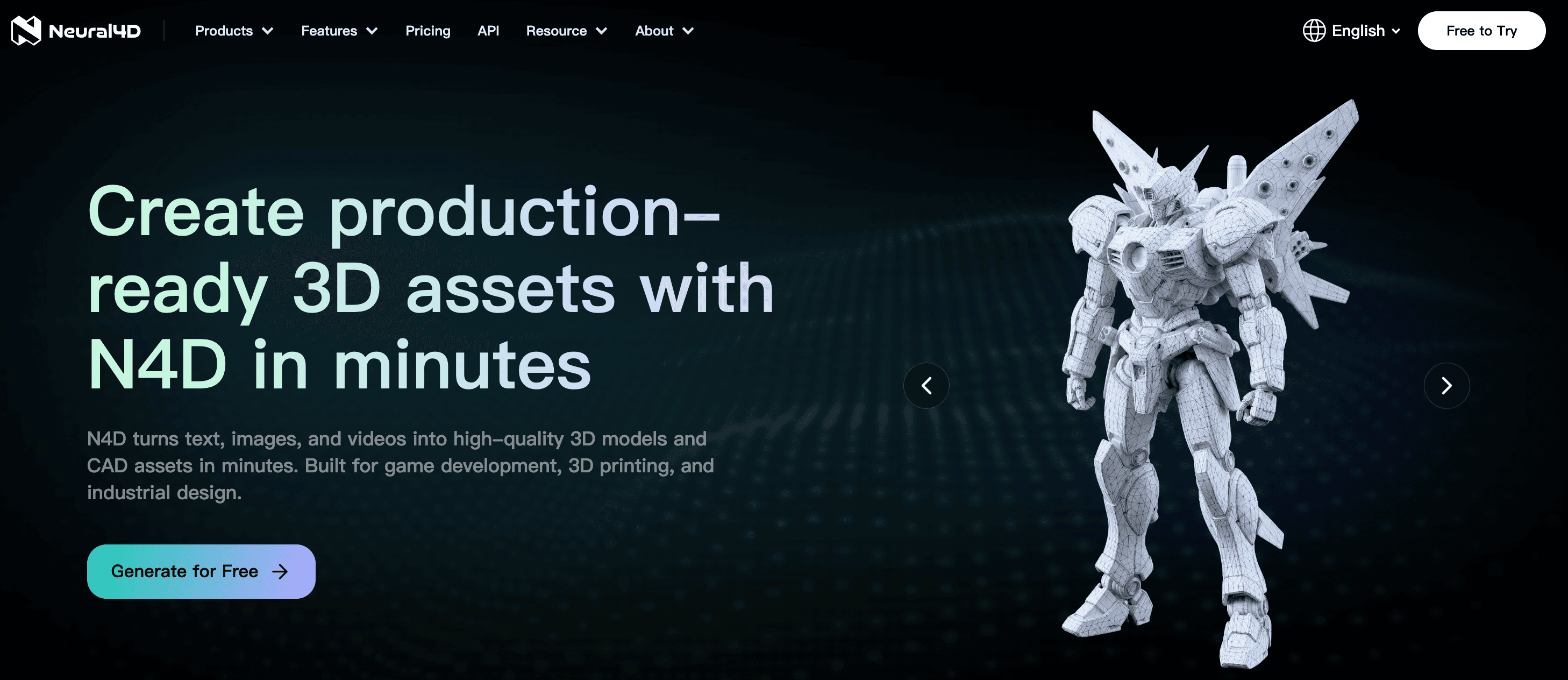
Neural4D converts a photo or sketch into a base mesh, with optional texture and PBR maps. Its workflow exposes triangle or quad topology, polygon-count settings, texture and PBR options, and exports in GLB, OBJ, FBX, USDZ, STL, and BLEND. The free plan currently replenishes 50 credits per week, but free outputs are for personal, non-commercial exploration; paid plans add commercial rights.
Pros:
- Six download formats cover Blender, game engines, web, AR, and printing.
- Topology and polygon-count controls make downstream intent clearer before generation.
- Optional texture and PBR stages avoid charging every user for the same output.
Cons:
- Texture, PBR, and quad options consume additional credits.
- Free assets do not include paid-plan commercial usage rights.
- “Watertight” or “production-ready” claims should still be checked in the destination slicer or DCC tool.
Recommended for:
- 3D artists who value format breadth and want more topology control than a one-button converter provides.
7. Fotor: Best for Stylized Portraits and Concept Images
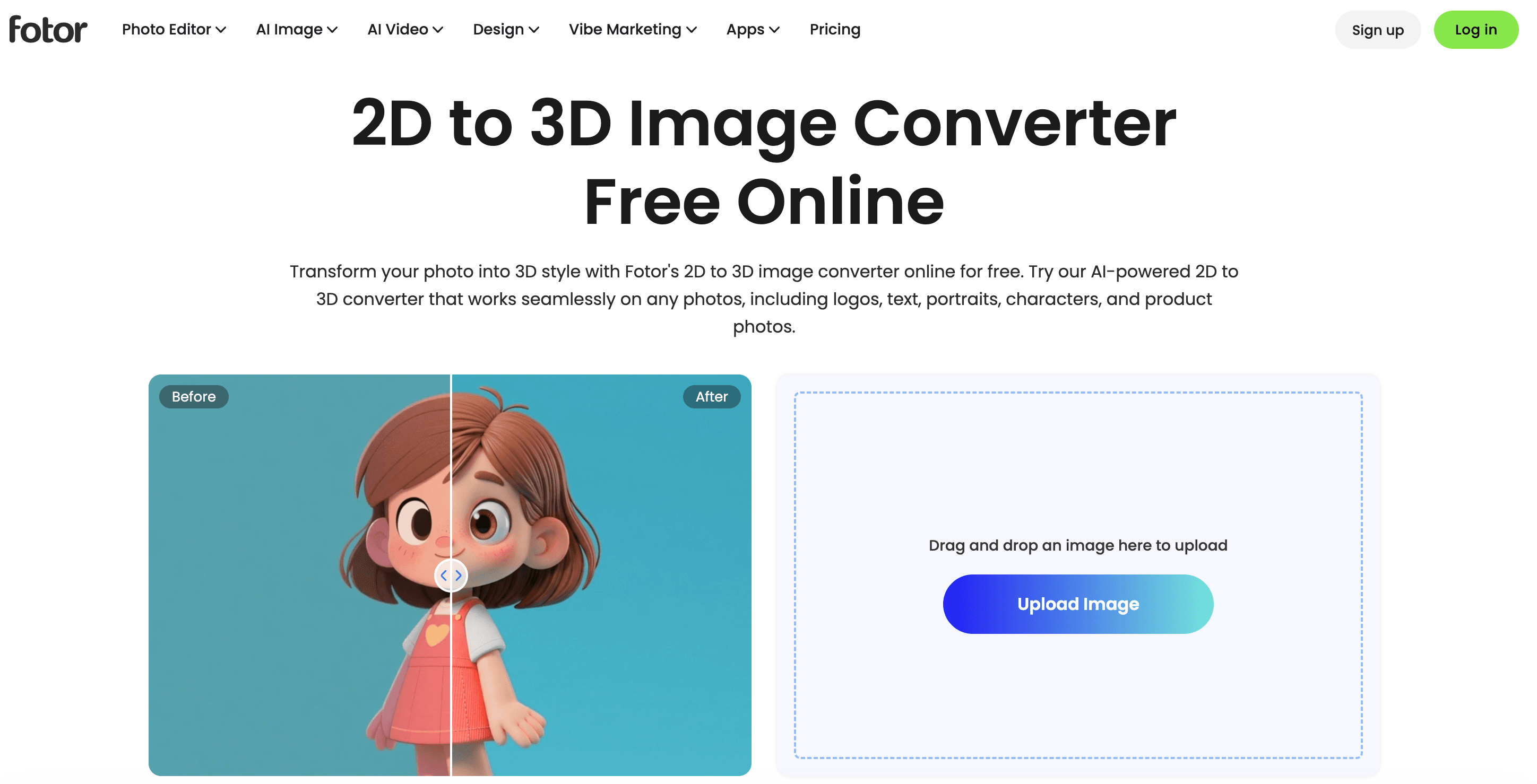
Fotor uses depth estimation, relighting, and style transfer to create 3D-looking images. Presets include standard 3D, cartoon, claymation, and fluffy looks, which are useful for avatars, pet art, product concepts, or visual development. Fotor explicitly states that the tool exports JPG and does not generate 3D models—a helpful limit that prevents a costly workflow mistake.
Pros:
- Strong range of stylized looks for portraits, animals, and illustrations.
- Simple browser workflow accepts JPG, JPEG, and PNG inputs.
- A selection of 3D effect filters is available free.
Cons:
- JPG-only output has no geometry, texture set, or rotatable hidden side.
- The full effect library and advanced features require Fotor Pro.
- Style transfer may reinterpret colors or forms rather than preserve the source precisely.
Recommended for:
- Creators who want a polished concept image or avatar and do not need a real model.
8. EaseMate AI: Best for Casual 3D-Style Experiments
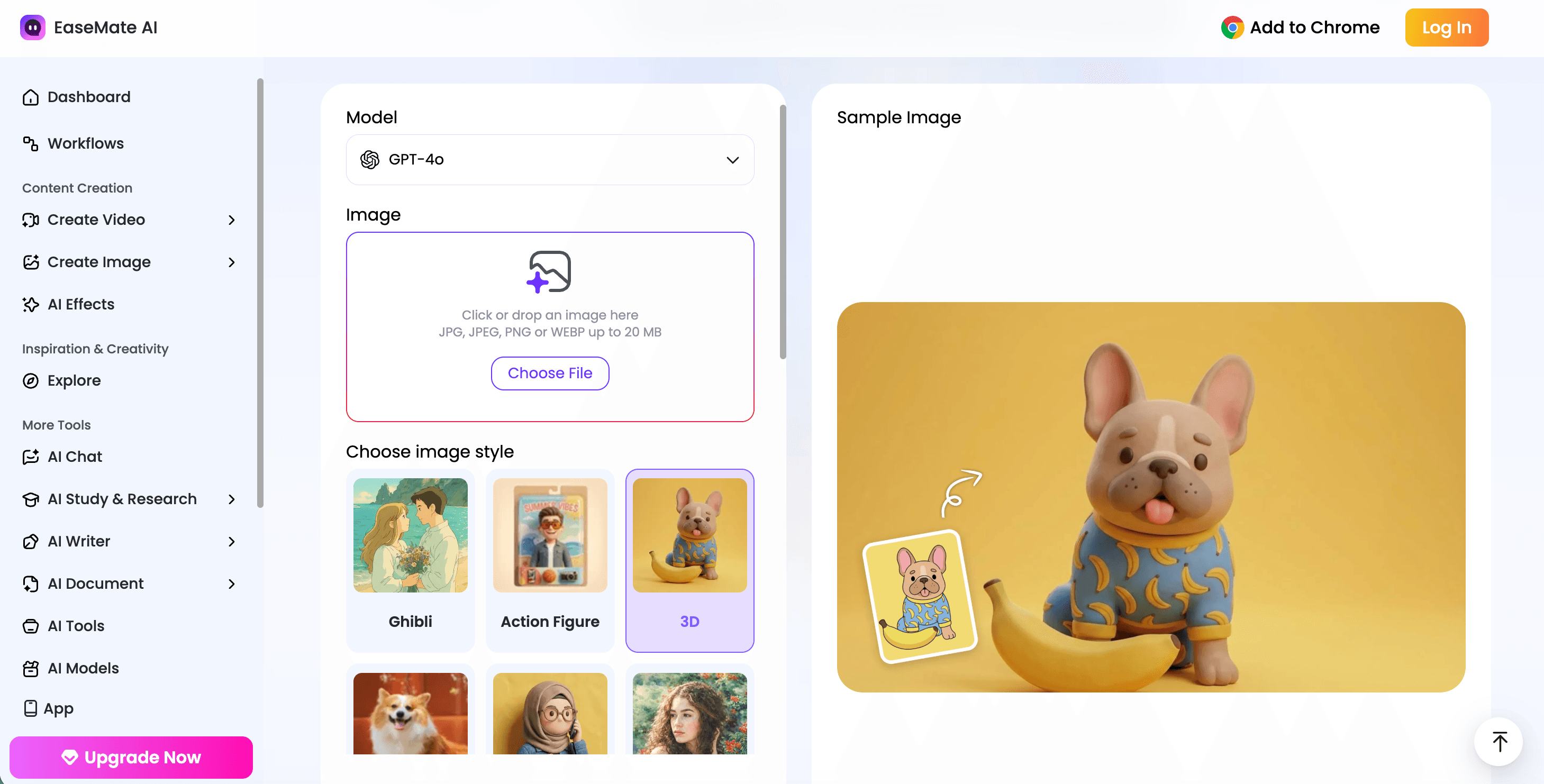
EaseMate AI provides many image styles—including 3D, clay, action figure, cartoon, and illustration—plus prompt and aspect-ratio controls. Its page showed zero credits required at the time of review. However, the documented workflow ends with downloading and sharing “3D artwork,” and the page does not establish mesh formats such as GLB, OBJ, or STL. Treat it as an image stylizer unless the live download panel proves otherwise.
Pros:
- Large preset library encourages fast visual experimentation.
- Accepts JPG, JPEG, PNG, and WebP files up to 20 MB.
- Prompt and aspect-ratio controls offer more direction than a fixed filter.
Cons:
- No documented mesh export means it should not be planned as a modeling tool.
- Many unrelated styles make the interface broader but less focused.
- Free access and zero-credit labels can change, so batch users should recheck the live page.
Recommended for:
- Casual users exploring a 3D-inspired look for an image without learning 3D software.
9. Meshy: Best for Game Assets and Rapid Iteration
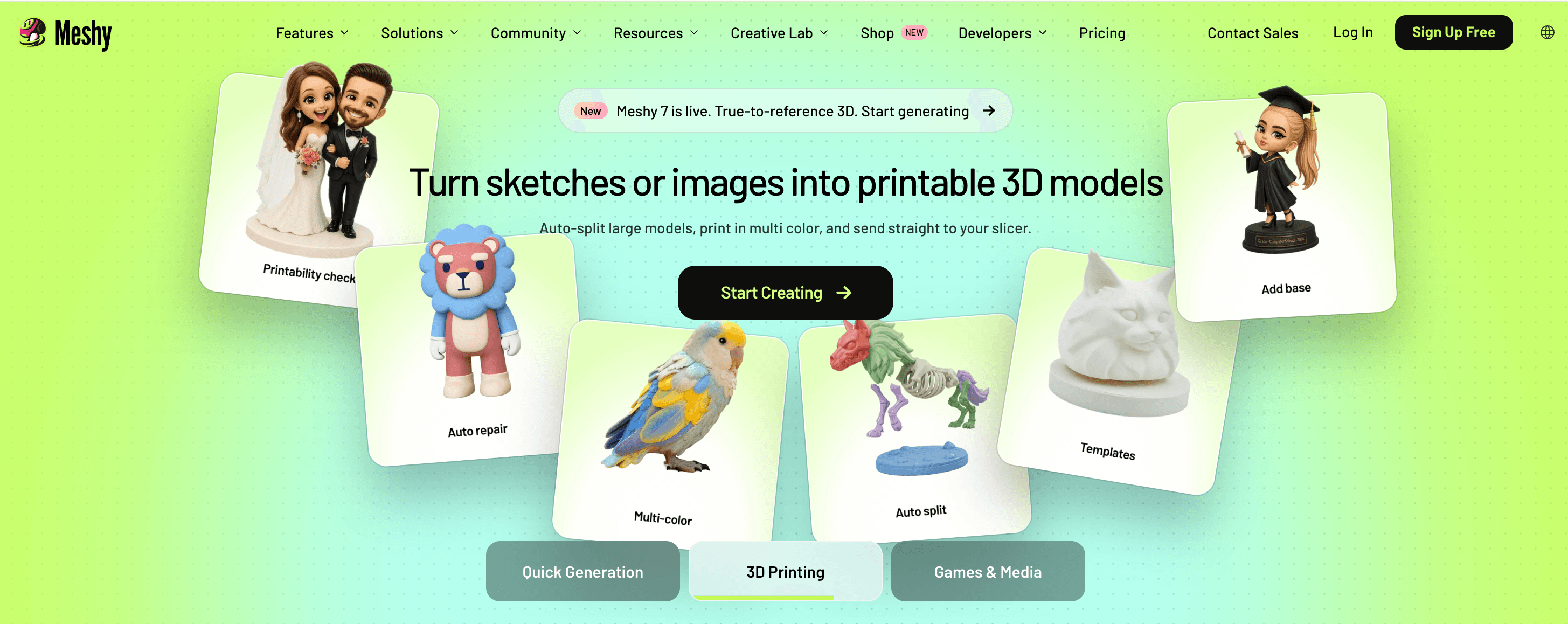
Meshy generates a textured 3D model from a photo, sketch, or concept image. Meshy 7 and Meshy 6 offer different speed and quality tradeoffs, while image enhancement and multi-view can improve the input or supply more angles. Exports cover common game, web, AR, and printing workflows. The free plan currently provides 100 monthly credits; free outputs use a CC BY 4.0 license, while paid plans provide a private license.
Pros:
- Mature image-to-model workflow with texturing, remeshing, rigging, and animation nearby.
- Multi-view support reduces some ambiguity of single-image reconstruction.
- Broad export and integration options suit fast game-asset iteration.
*Cons:
- Free assets require attribution under CC BY 4.0.
- Generation, texture, and advanced tasks draw from a shared credit balance.
- Symmetric or front-facing subjects remain easier than thin, transparent, or heavily occluded objects.
Recommended for:
- Indie developers and 3D generalists who prioritize rapid asset ideation and a wide creation toolset.
10. Magic3D: Best Browser-Based Multi-Format Alternative
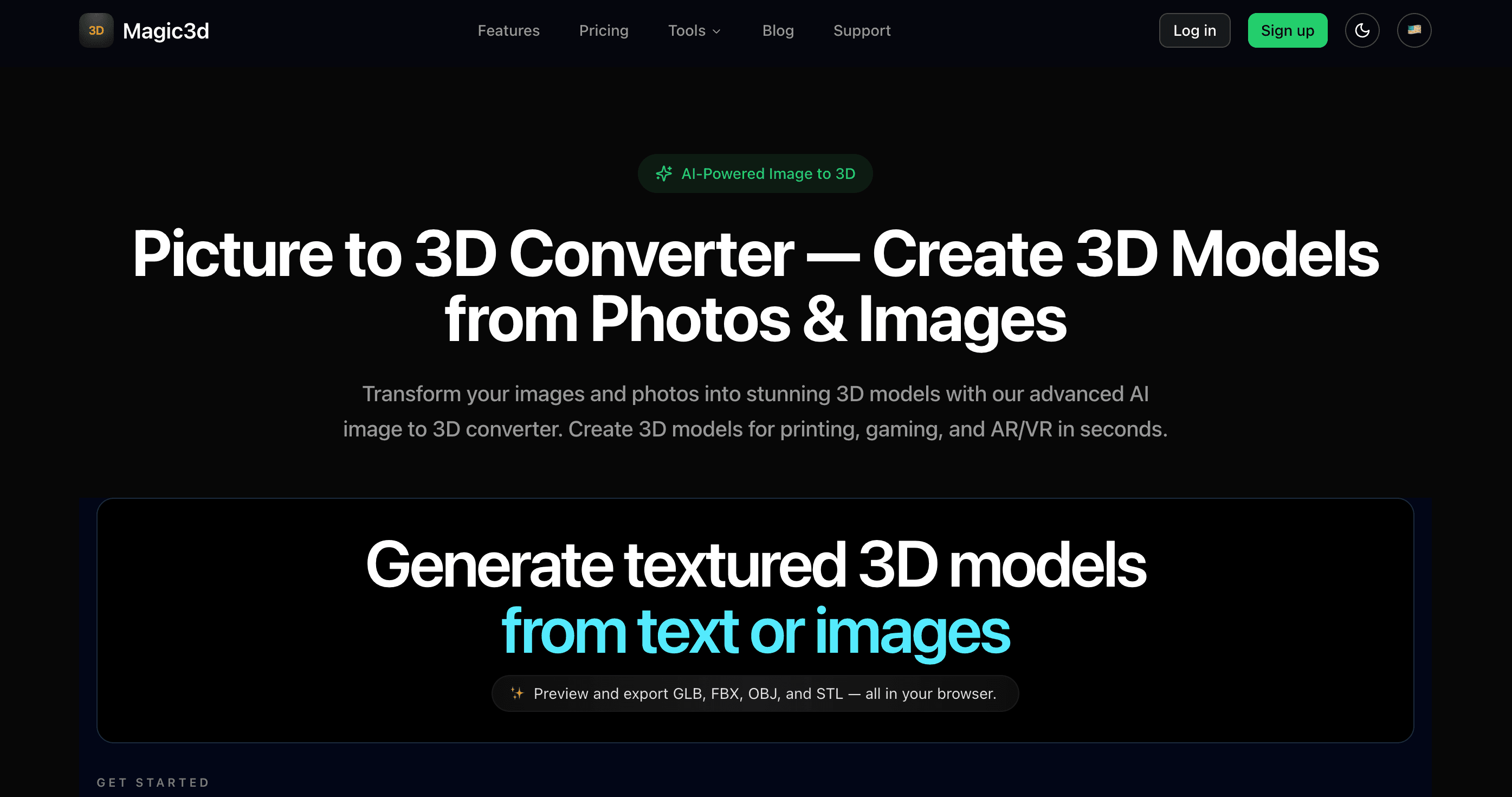
Magic3D turns an image into a previewable mesh and supports GLB, FBX, OBJ, STL, GLTF, and USDZ across its platform. New accounts receive 100 credits valid for 30 days; image-to-3D currently costs 30 credits for a mesh and more for textures or Pro quality. Free assets use a CC BY 4.0 license, while paid tiers add private commercial assets and higher-quality options.
Pros:
- Runs in the browser and previews the actual model before export.
- Format coverage serves web, games, AR, Blender, and printing.
- The sign-up credit grant is enough to sample several standard generations.
Cons:
- Free credits expire after 30 days and do not roll over.
- Textures and higher-fidelity quality consume extra credits.
- Free assets require attribution; private commercial rights are a paid feature.
Recommended for:
- Users who want a convenient browser alternative with transparent credit costs and multiple mesh formats.
How to Use AI to Turn a 2D Image into 3D
Hi3D keeps the basic conversion short: upload, choose the generation settings, inspect the result, and download. The three steps below focus on the decisions that affect the output most.
1. Upload Your Image
Open the Hi3D homepage and select Try it free to enter the workspace. Upload the 2D image you want to process. Choose a sharp image with one clearly separated subject, a simple background, visible edges, and minimal cropping. That gives the model more reliable evidence for shape and hidden-part completion.
2. Choose the Right Settings
Use the controls on the left to match quality and cost to the job:
- Model Version: Choose from available Hi3D generations. Start with the latest v3.0 model when fine shape, lettering, complex structure, or high-detail texture matters.
- Model Type: Quality balances generation quality, time, and credit use. Master targets the highest available geometry quality but costs more, so reserve it for final assets rather than every draft.
- Generate Type: Select geometry-only generation when you plan to texture elsewhere, or choose the geometry-plus-texture option when you need a visually complete asset from the same workflow.
3. Download the Model
After a few minutes of processing—depending on the selected mode and queue—rotate and zoom around the model before downloading. Check the silhouette, back, underside, thin pieces, texture seams, and any area hidden in the original image. Then select the format that fits the next step—GLB or USDZ for viewing, OBJ for broad editing compatibility, or STL/3MF for printing. Exact availability can vary by feature and plan.
Conclusion
The best 2D to 3D image converter depends first on whether “3D” means appearance or geometry. Canva, ElevenLabs, Fotor, and EaseMate AI are convenient for flat visuals with dimensional styling. IMAGEtoSTL is the most direct free 2D to 3D image converter for reliefs. Meshy, Neural4D, AI3DGen, and Magic3D all create useful model files for different workflows.
For the broadest path from one image to a detailed, textured, editable, and printing-oriented asset, Hi3D is the best overall choice in this comparison. Its v3.0 model, multi-format exports, and follow-on print tools cover more of the job after the initial conversion. Register and try Hi3D for free with a clean reference image, inspect the hidden surfaces, and use Quality mode for the first draft before spending more credits on a final Master generation.