"3D model converter” can mean two different things: converting an existing 3D file into another format, or generating a new 3D model from an image.
If you already have an FBX, OBJ, STL, or GLB file, you mainly need reliable format conversion. If you're starting with a JPG or PNG, you need an image-to-3D tool that can create geometry before export.
This guide covers both types. We compare eight tools by supported formats, image-to-3D capability, browser workflow, export options, and where each one fits into Blender, game-engine, web, AR, or 3D-printing workflows.
Which 3D Format Should You Choose?
Before picking a converter, start with the format you actually need. If you want a deeper breakdown of STL, OBJ, and 3MF, see this 3D printing file formats guide:
| Format | Best for | Keep in mind |
|---|---|---|
| STL | 3D printing | Geometry only; no textures or animation |
| OBJ | Blender and general 3D editing | Textures are usually stored separately |
| FBX | Unity, Unreal, rigging, and animation | Better suited to complex scene data |
| GLB / GLTF | Web, AR, and real-time previews | GLB can package the model and textures into one file |
Quick rule: use STL for printing, OBJ for general editing, FBX for game and animation workflows, and GLB for web delivery.
8 Best 3D Model Converters
| Tool | Best For | Image to 3D | 3D File Conversion | Main Export Formats | Free Option | Best Use Case |
|---|---|---|---|---|---|---|
| Hi3D | Image-to-3D + downstream export | Yes | Limited model-processing workflows | OBJ, GLB, STL, FBX, USDZ, 3MF | Yes | Turning images into detailed 3D models |
| Convert3D | Broad online file conversion | No | Yes | FBX, GLB, GLTF, OBJ, STL, USDZ, 3MF and more | Yes | Converting existing 3D files |
| FurniMesh | Free browser-based conversion | Separate image-to-3D tool | Yes | GLB, OBJ, SKP, BLEND, FBX, STL, GLTF and more | Yes | Private browser-side conversion |
| Canva | 3D-style images | Text-to-image | No real mesh conversion | Image output | Yes | Visual concepts and marketing |
| ImageToSTL | Images and logos to printable geometry | Yes, heightmap/extrude | Yes | STL and other 3D formats | Yes | Logos, reliefs, heightmaps, printing |
| 3D AI Studio | AI 3D + format conversion | Yes | Yes | GLB, GLTF, OBJ, STL, PLY, FBX | Free credits | Mixed AI generation and file conversion |
| Meshy | Game assets + file conversion | Yes | Yes | FBX, OBJ, USDZ, GLB, STL, BLEND, 3MF | Yes | Blender, Unity, Unreal, printing |
| Magic3D | AI image-to-3D generation | Yes | Upload-to-3D workflows | Standard 3D exports | Yes | Fast AI asset generation |
1. Hi3D: Best for Converting Images Into High-Detail 3D Models
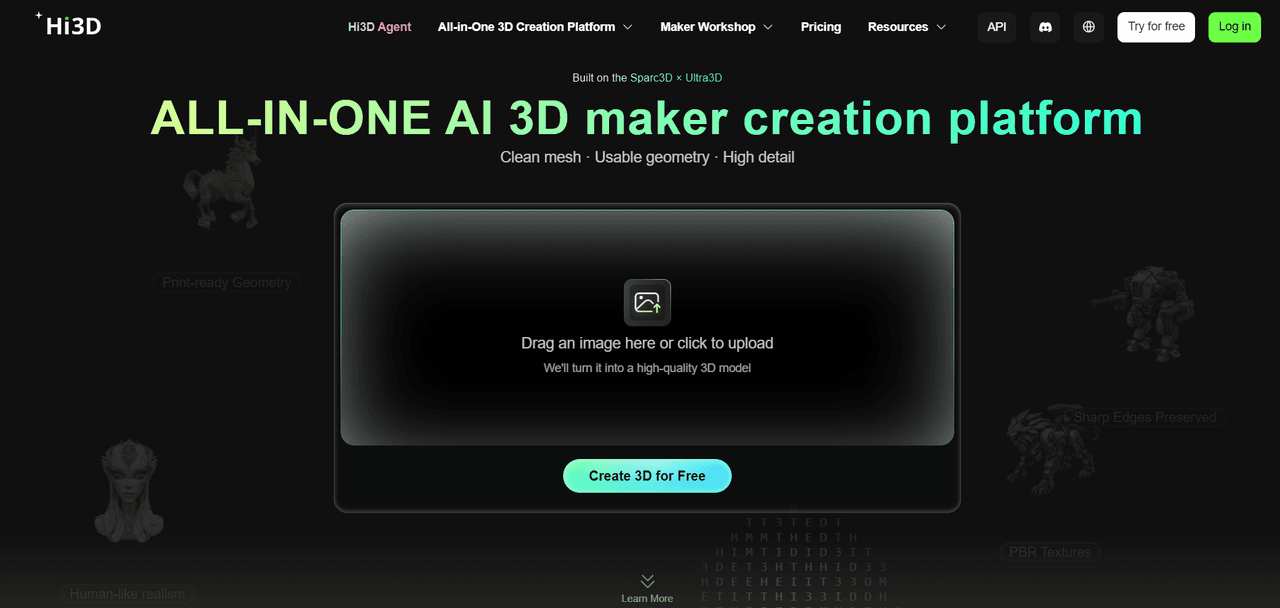
Hi3D stands out here because it starts from an image rather than an existing 3D file.
A conventional 3d model converter rewrites one mesh format into another. Hi3D instead uses AI to reconstruct 3D geometry from a 2D image, then lets you export the generated model in common 3D formats.
Hi3D V3.0 currently supports 2048quality and 2048master modes. Its documentation lists a recommended target of up to 5 million faces for 2048master, and its Image-to-3D workflow supports OBJ, GLB, STL, FBX, USDZ, and 3MF after generation.
This workflow is aimed at cases where the source is a product image, character artwork, sculpture reference, game concept, animal image, or object photo rather than a 3D file.
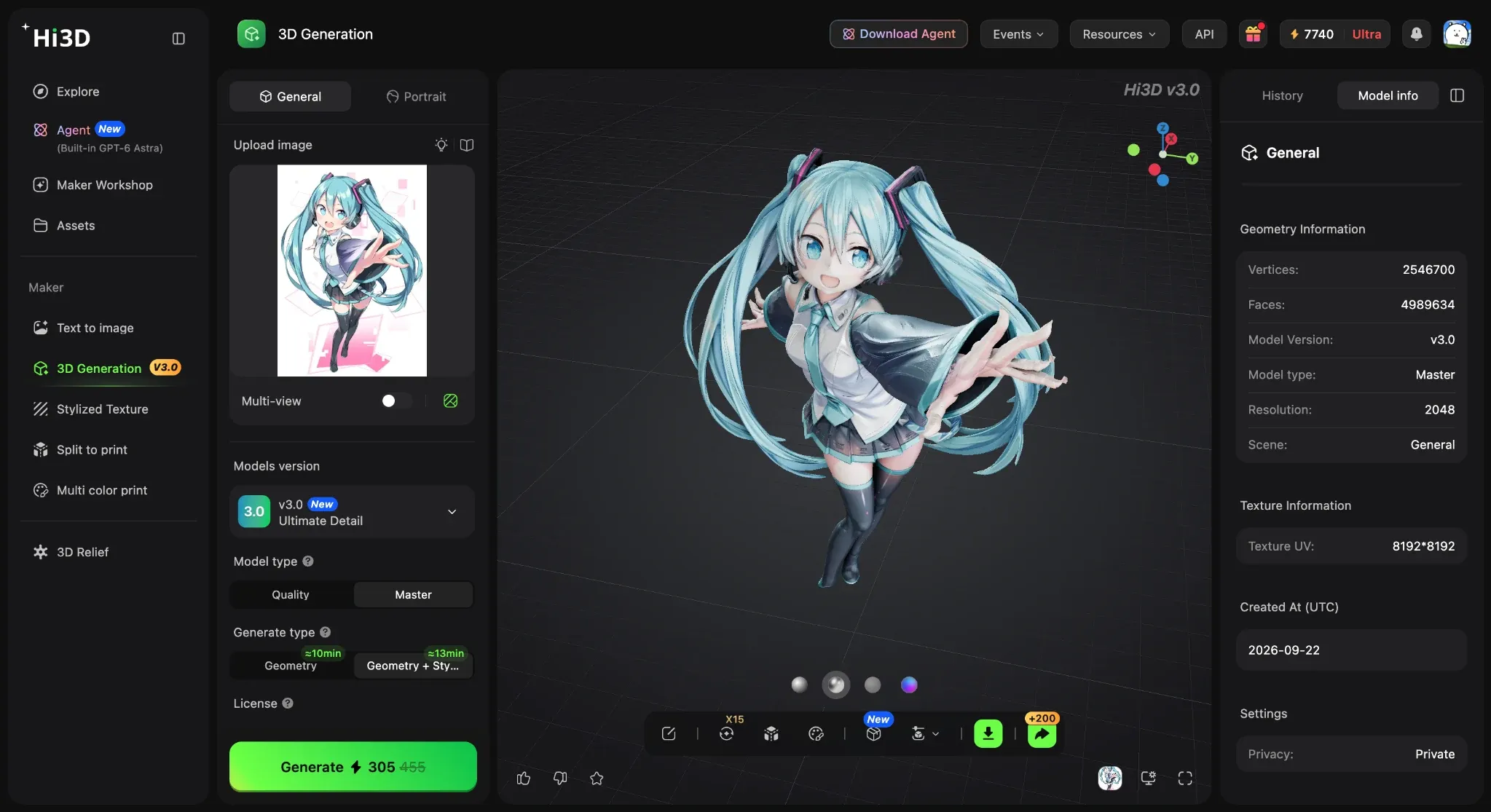
Hi3D V3.0 Master
Hi3D V3.0 is built around higher-resolution geometry and more detailed reconstruction than earlier models. The Master workflow is aimed at cases where small surface details, complex silhouettes, engraved text, hair, layered accessories, or partially occluded structures matter more than fast preview generation.
For textured workflows, Hi3D also supports texture generation and optional PBR as part of its Image-to-3D pipeline.
Main Features:
- Image to 3D: Hi3D can reconstruct a mesh from one reference image or multiple views. V3.0 Master is intended for higher-detail geometry, including small shapes, edge detail, and complex silhouettes.
- Multi-view input: Front, back, left, and right references can be added when hidden surfaces need more information than a single image provides.
- Exports: OBJ, GLB, STL, FBX, USDZ, and 3MF. That covers common Blender, game-engine, web, AR, and 3D-printing workflows.
- Textures and PBR: Textured output and optional PBR processing are available in the Image-to-3D pipeline.
- Print tools: Split-to-Print can divide larger objects into printable parts and add connectors, while multi-color preparation helps move textured models toward physical printing.
Price:
Hi3D has a Free plan at $0. Pro costs $19.90 per month, or $119.40 per year when billed annually ($9.95/month equivalent). Max costs $39.90 per month, or $239.40 per year when billed annually ($19.95/month equivalent). Ultra costs $129.90 per month, or $779.40 per year when billed annually ($64.95/month equivalent).
The plans include different monthly credit allowances, generation limits, concurrency, storage, download rights, and feature access. Promotional first-month prices may appear for new subscribers, so check the current Hi3D subscription page before choosing a plan. These web-app subscriptions are separate from Hi3D's API pricing.
Pros:
- Converts a 2D image into actual 3D geometry
- High-detail V3.0 Master option
- Supports major 3D export formats
- Useful for Blender, game-engine, AR, and 3D-printing workflows
- Supports multi-view input for better reconstruction
- Includes print-oriented split and multi-color tools
- Good fit for users without traditional modeling experience
Cons:
- It is not primarily a general-purpose “FBX to OBJ” file converter
- Master mode costs more than lower-resolution modes
- Single-image reconstruction still requires AI to infer hidden geometry
- Production animation may still require retopology or rigging in another tool
Best For
Hi3D is best for users searching for an image to 3d model converter rather than simply changing an existing 3D file from one format to another.
It is aimed at creators, game artists, product designers, and 3D-printing users who want to turn a reference image into editable geometry without modeling the object from scratch.
2. Convert3D: Best for Broad Online 3D File Conversion
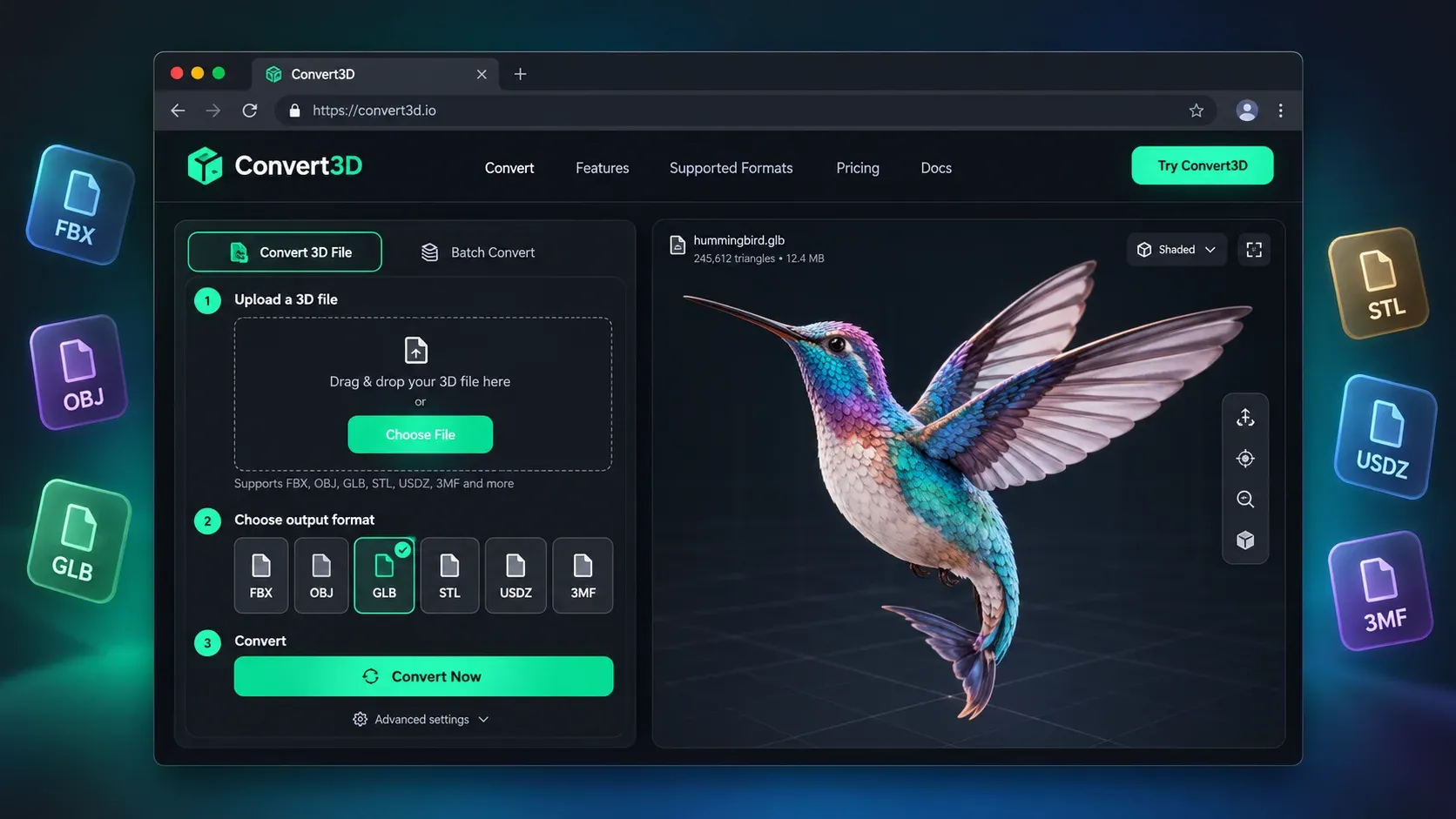
Convert3D focuses on conventional file conversion: upload an existing 3D model and export it in another format.
That makes it a more direct fit than an image generator when the source asset already exists but the destination software expects another file type. Its current documentation lists a broad range of import formats, including BLEND, FBX, OBJ, GLB, GLTF, STL, STEP, STP, IFC, DWG, DXF, 3MF, USD, USDZ, 3DS, and PLY.
The mix of CAD, DCC, web, and printing formats is the main reason to consider it. A designer could use the same browser service for an IFC or STEP conversion one day and an OBJ-to-GLB export the next. Preview and compression tools help with quick handoffs, while paid plans extend the platform into AI generation. As with any format conversion, materials, animation, and scene structure should be checked after export because not every destination format can preserve every source property.
Main Features:
- Broad CAD, DCC, web, and 3D-printing format coverage
- Browser preview and model-compression tools
- Optional AI generation features on higher plans
Price:
- Free: limited conversions
- Pay-as-you-go: $18 for 3 conversion credits
- Pro: $29/month
- Pro includes unlimited conversion plus AI generation features
Pros:
- Extremely broad input-format coverage
- Good for CAD, mesh, and common DCC files
- Supports unusual format combinations
- Useful when the job is actual file conversion rather than AI generation
Cons:
- Free tier has usage limits
- Image-to-3D is not the main free converter workflow
- Complex animation/material data may not survive every conversion pair perfectly
Best For
Users converting existing assets, including CAD files and less common 3D formats.
3. FurniMesh: Best Free Browser-Based 3D File Converter
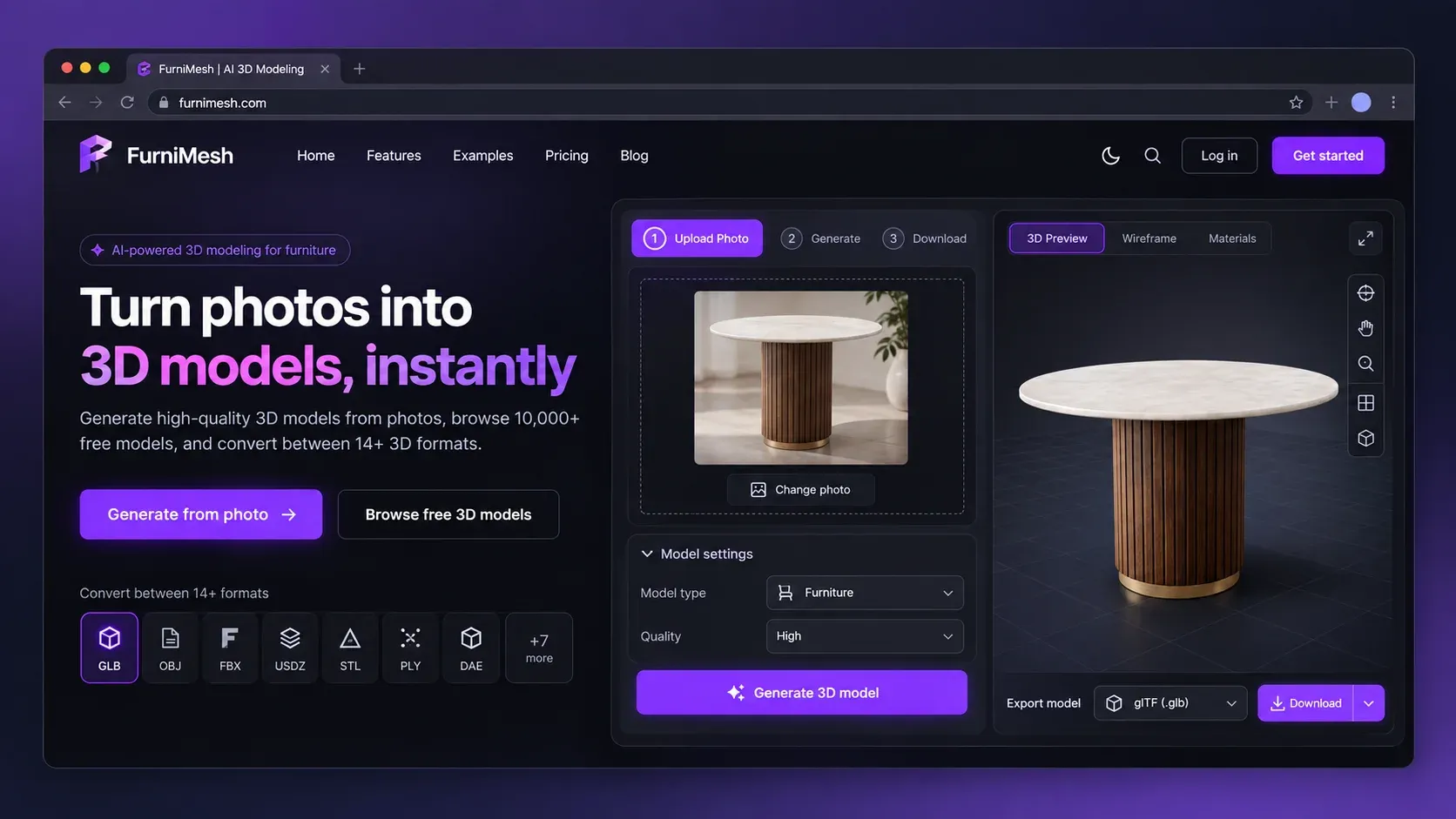
FurniMesh takes a different approach: its core converter runs locally in the browser.
The WebAssembly-based workflow means common conversions can happen on the user's device instead of sending the source model to a remote server. That is useful for private prototypes, client assets, or simple jobs where creating an account would add unnecessary friction.
Format coverage includes FBX, BLEND, SKP, OBJ, STL, GLB, GLTF, PLY, 3DS, DAE, 3DM, 3MF, and IFC. FurniMesh attempts to retain materials and UV information when both formats support them, although browser memory becomes the practical ceiling for very large scenes. The wider service also offers furniture-oriented image-to-3D tools, but those are separate from the free core converter.
Main Features:
- Local, browser-based conversion without mandatory sign-up
- Support for common mesh, DCC, architecture, and printing formats
- Separate AI and furniture-oriented tools outside the core converter
Price:
- 3D converter: free
- Free plan also includes limited AI credits
- Paid plans add advanced generation and model-library features
Pros:
- Free unlimited converter
- No sign-up for core conversion
- Browser-side processing improves privacy
- Includes BLEND and SKP support
Cons:
- Strong furniture/architecture positioning
- Browser memory can become the practical limit for large files
- Not primarily designed as a general image-to-3D solution
Best For
Users who want a free, private 3d model converter for common formats without uploading files to a server.
4. Canva: Best for 3D-Style Images, Not Real Mesh Conversion
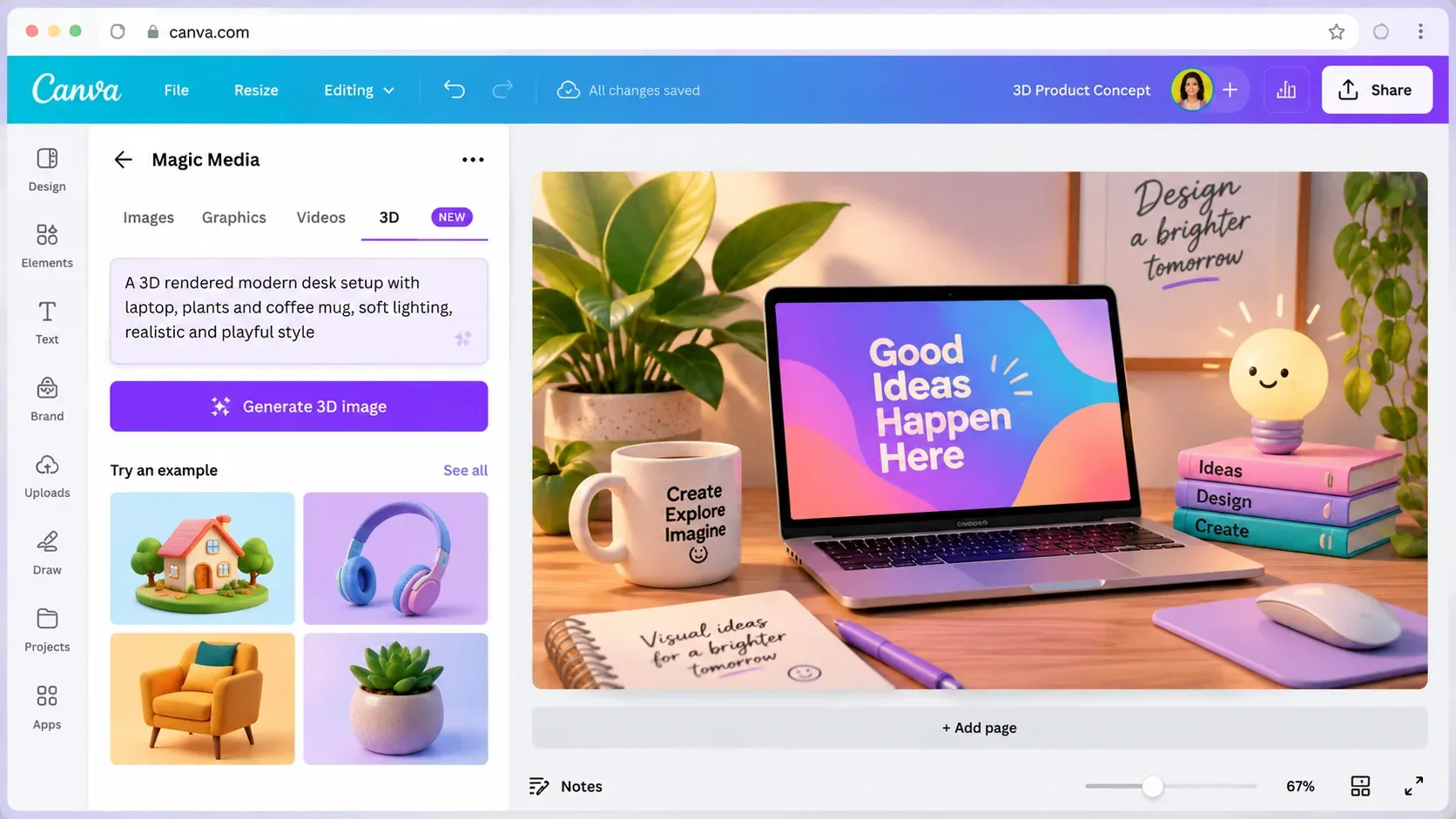
Canva's AI 3D Model Generator belongs in this list with one caveat: it generates 3D-style images, not downloadable editable 3D mesh files.
That distinction matters because Canva solves a visual-design problem rather than a geometry problem. A marketing or concept team can generate a 3D-looking object, place it in a presentation or social post, and continue editing the composition without learning topology or UV mapping. The result can help communicate shape, color, material, or mood before a model exists.
It cannot replace a converter when the next step is Blender, Unity, Unreal, CAD, or a slicer. There is no STL, FBX, GLB, or OBJ mesh behind the generated image. Canva is therefore most useful as an early concept and communication tool, not as the technical bridge between 3D formats.
Main Features:
- Text-to-image generation with a 3D visual style
- Direct use inside Canva presentations, posts, mockups, and mood boards
- Image output for concept communication rather than editable mesh export
Price:
- Free access available with usage limits
- Paid Canva plans provide additional AI usage
Pros:
- Very easy to use
- Excellent for concept visuals
- No 3D modeling knowledge needed
- Integrates directly with Canva design tools
Cons:
- Not a true 3D mesh converter
- Cannot output STL, FBX, GLB, or OBJ geometry
- Not suitable for Blender, Unity, Unreal, or 3D printing as a 3D asset
Best For
Designers who want a 3D-looking visual rather than a real 3D model.
If your goal is actual geometry, choose another tool in this list.
5. ImageToSTL: Best Free Image-to-STL Converter for Reliefs and Logos
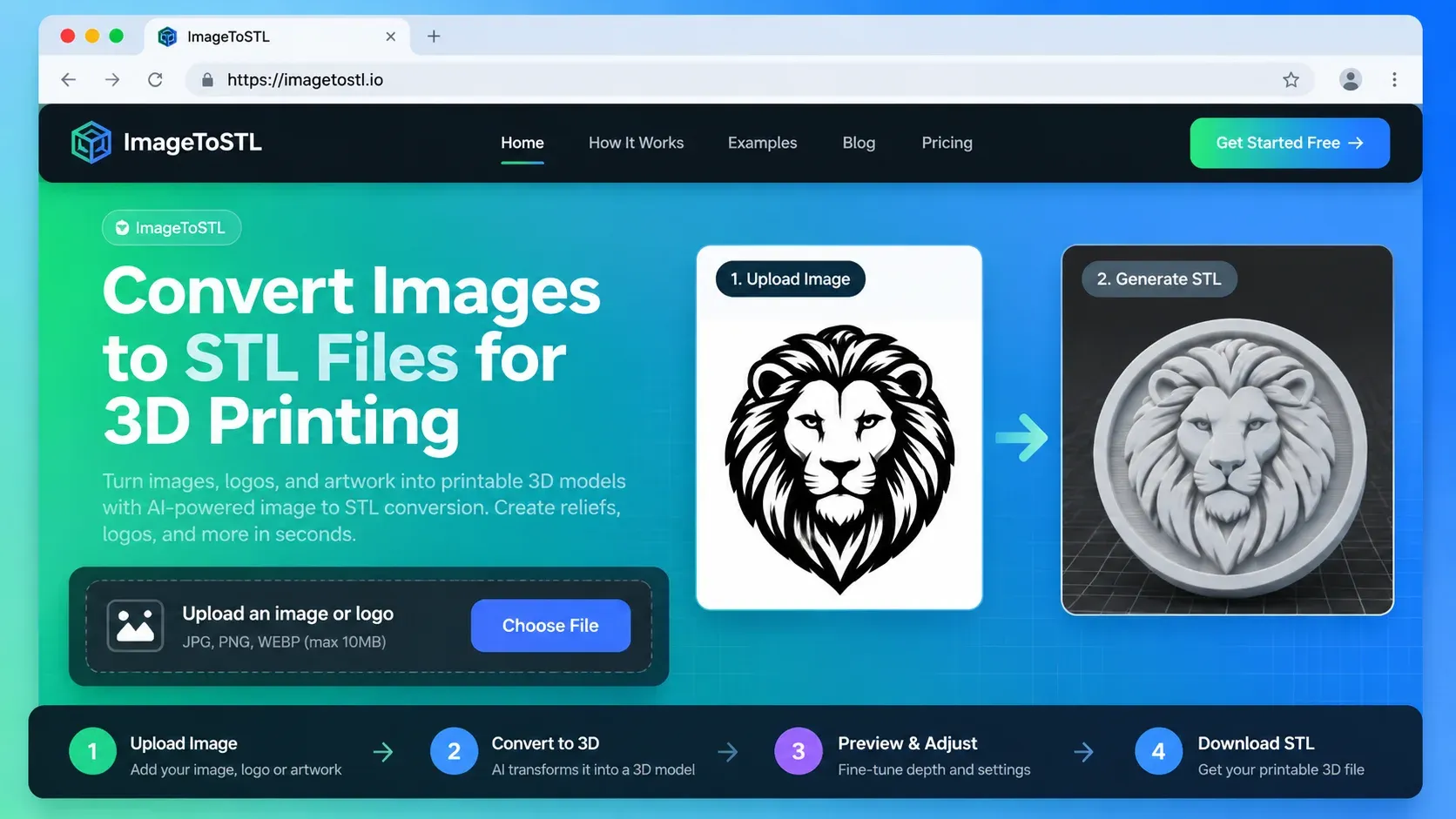
ImageToSTL is a very different kind of picture to 3d model converter.
Instead of using generative AI to reconstruct a full 3D object, it converts image pixels into geometry using heightmap or extrusion methods.
That narrower method is an advantage when the source is a logo, silhouette, badge, terrain map, or grayscale relief. Brightness and edge information can become depth, while size and thickness controls shape the final printable object. Because the tool does not need to imagine an unseen back or side, the workflow is more predictable for flat and relief-based designs than for characters or products photographed from one angle.
ImageToSTL is therefore best understood as a fast path from 2D artwork to printable relief geometry. It is not a substitute for full image-to-3D reconstruction, and it will not turn an ordinary product photo into a complete object automatically.
Main Features:
- Heightmap and extrusion workflows for reliefs, logos, and silhouettes
- Size, thickness, and depth controls before export
- Browser-based STL creation without AI-generation credits
Price:
- Free
Pros:
- Simple and fast
- Good for logos and heightmaps
- No AI credits required
- Useful for 3D printing
- Supports large uploaded image files
Cons:
- Does not infer a complete 3D object from a normal photograph
- Results are based on image brightness, edges, and extrusion
- Not appropriate for complex character or product reconstruction
Best For
Users who want a free image to 3d model converter for printable reliefs, logos, heightmaps, and simple extruded designs.
6. 3D AI Studio: Best for AI Generation and File Conversion in One Platform
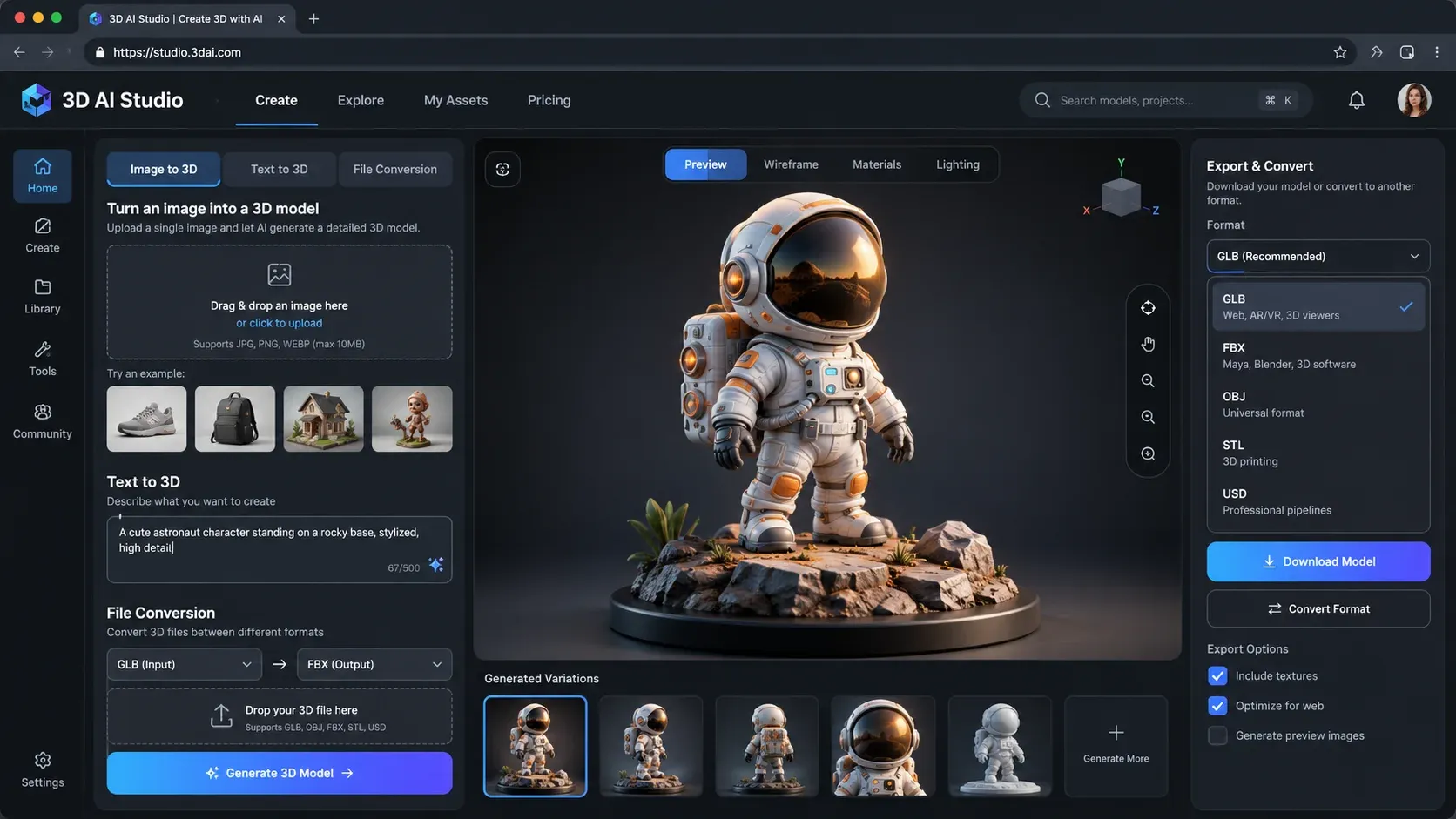
3D AI Studio combines generative AI with traditional file-processing tools.
Its 3D converter supports common formats such as GLB / GLTF, OBJ, STL, PLY, and FBX, while the broader platform adds image-to-3D, text-to-3D, mesh repair, texturing, and other AI-assisted workflows.
The appeal is continuity: a user can create an asset, repair or process it, and convert it for another destination without moving through several unrelated websites. Several AI models are available within the platform, which is helpful when one model handles a particular subject or style better than another. An API also supports teams that want generation or conversion inside an automated asset pipeline.
The tradeoff is complexity. Someone who only needs a single FBX-to-OBJ conversion may find a dedicated converter faster, while a creator working across generation, repair, texturing, and export can make better use of the larger toolset.
Main Features:
- AI generation and conventional conversion in one workspace
- Common Blender, game, web, and printing formats
- Mesh-processing tools, multiple AI models, and API access
Price:
- Free credits available for selected tools
- Basic: $12/month when billed annually
- Studio: $23/month when billed annually
- Pro: $139/month when billed annually
Pros:
- Combines generation and conversion
- Good for workflows where assets need several processing steps
- Supports common mesh formats
- Useful API for automated pipelines
Cons:
- Fewer converter formats than dedicated broad-format tools such as Convert3D
- Credit system adds complexity
- More features than necessary if you only need a one-off file conversion
Best For
Creators and developers who want both AI generation and 3d model file converter tools in one workspace.
7. Meshy: Best for Game-Ready 3D Conversion and Blender Workflows
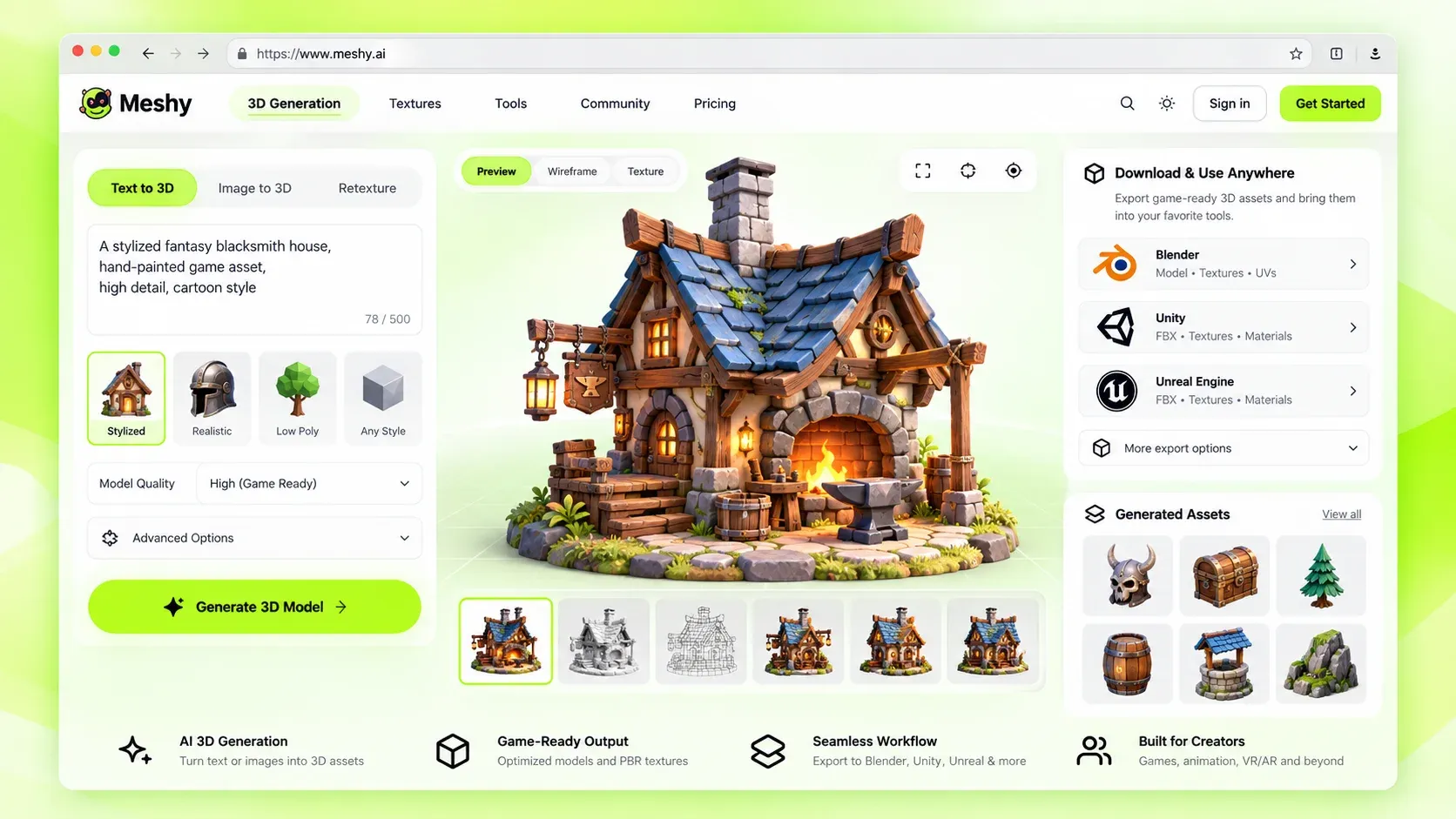
Meshy offers both a file converter and a broader AI asset-production platform.
The platform also extends beyond conversion into remeshing, retexturing, rigging, animation, Blender, Unity, and Unreal workflows.
That broader pipeline makes Meshy more relevant to game artists and real-time creators than a simple one-off converter. An asset can begin as text or an image, move through remeshing or retexturing, receive rigging and animation, and then continue into a DCC package or game engine. Export options cover common real-time, web, editing, and printing needs.
The same breadth can be unnecessary for a small conversion job, and complex source scenes may be simplified as they move between formats. Meshy makes the most sense when conversion is one stage in a larger asset workflow rather than the whole task.
Main Features:
- Common real-time, DCC, web, and printing export formats
- Image/text generation plus remeshing and retexturing
- Rigging, animation, Blender, Unity, and Unreal workflows
Price:
- Free plan available
- Paid plans offer more credits and production features
Pros:
- Very good Blender and game-engine compatibility
- Strong range of export formats
- Built-in AI generation and animation workflow
- Suitable for both characters and general assets
- Useful for game developers
Cons:
- Broader platform can be overkill for simple conversions
- Free-plan limits apply to some downloads and generation workflows
- Complex source-file structures may be simplified during processing
Best For
Game developers and Blender users who need conversion plus generation, rigging, animation, or other downstream 3D tools.
8. Magic3D: Best for Fast AI Image-to-3D Generation
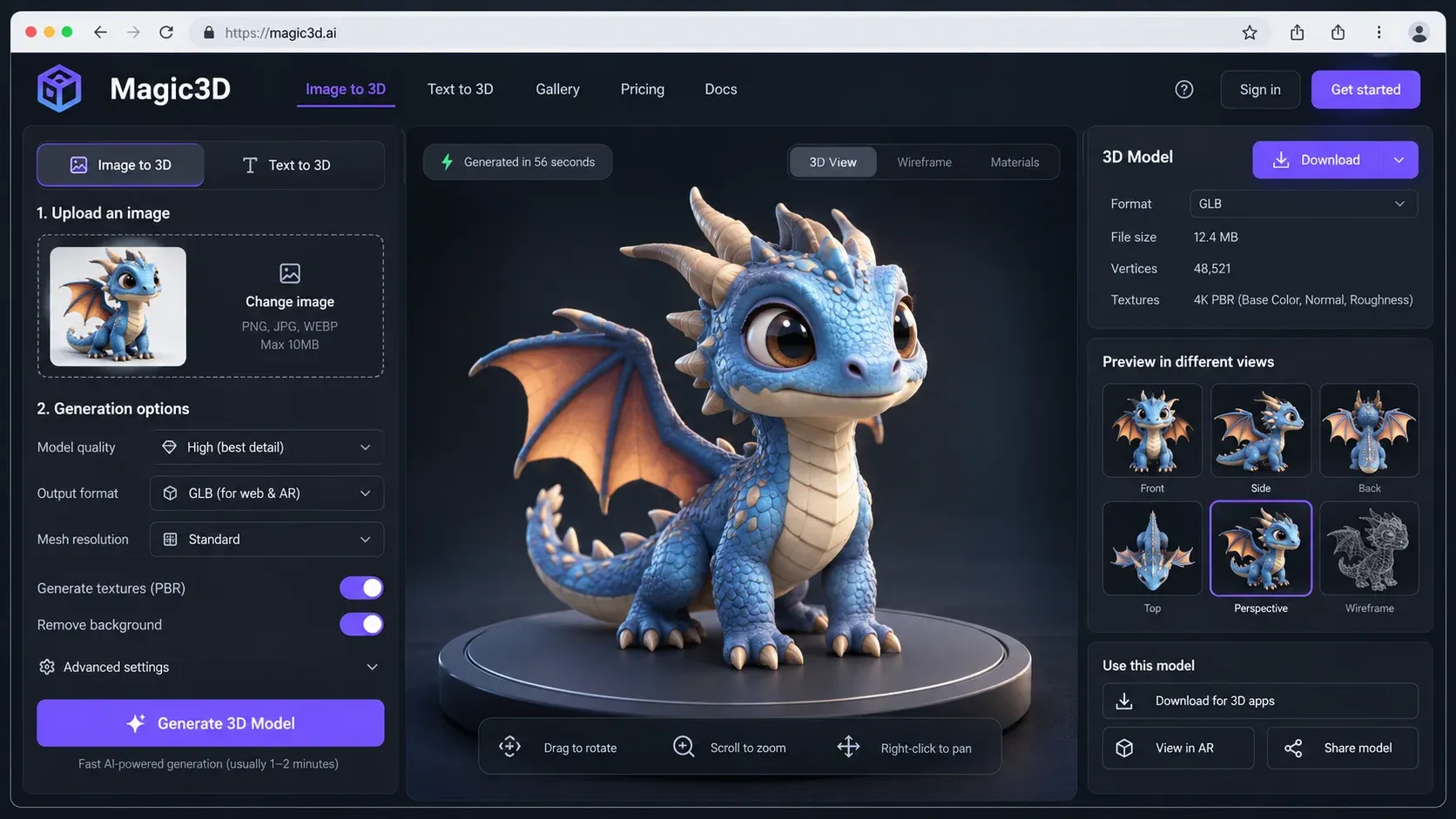
Magic3D is primarily an AI generation platform rather than a traditional format converter.
It supports text-to-3D, image-to-3D, and upload-to-3D workflows using credits. The focus is model generation rather than broad file-format conversion.
This is useful when the source is an idea or reference image and the user wants a quick new asset, not when the task is to preserve a complex existing scene while changing its container format. Generated models can be previewed with textures before download, which makes Magic3D approachable for experiments and early concept work.
Its starter-credit model lowers the barrier to testing, but the free allowance expires and commercial rights vary between free and paid output. Users planning production work should review the current license and export conditions rather than treating a free preview as production clearance.
Main Features:
- Text-to-3D and image-to-3D generation
- Textured preview before download
- Starter credits for testing the workflow
Price:
- Free: 100 sign-up credits for 30 days
- Pro: promotional first-month pricing, then $19.90/month
- Max: promotional first-month pricing, then $39.90/month
- One-time credit packs also available
Pros:
- Easy way to test AI image-to-3D
- Free starter credits
- Text and image workflows in one platform
- Suitable for quick concept assets
Cons:
- Primarily an AI generator, not a broad file-format converter
- Free credits expire after 30 days
- Commercial rights differ between free and paid output
Best For
Users who want a lightweight AI image to 3d model converter for quick experimentation and concept generation.
How to Convert an Image Into a 3D Model With Hi3D
Use this Hi3D workflow when your starting point is a photograph or reference image rather than an existing mesh. For the full path from source image to physical object, Hi3D also has a complete AI-to-3D printing workflow guide.
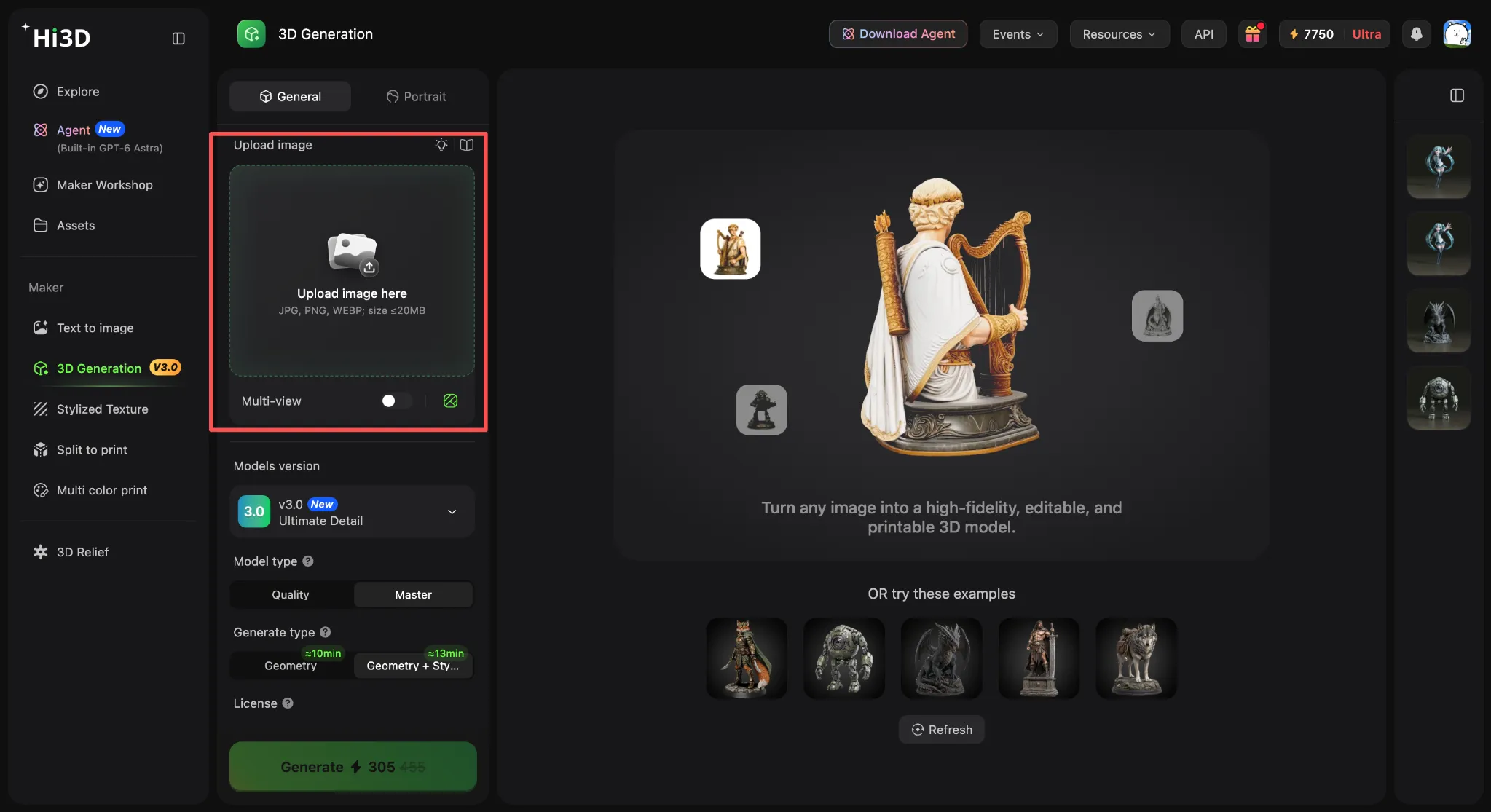
Step 1: Upload Your Image
Open the Hi3D Image-to-3D workspace and upload a PNG, JPG/JPEG, or WebP image.
For stronger results:
- Use a clearly visible subject.
- Avoid heavy background clutter.
- Keep the entire object in frame.
- Use even lighting where possible.
- Use multiple views if accurate back-side geometry matters.
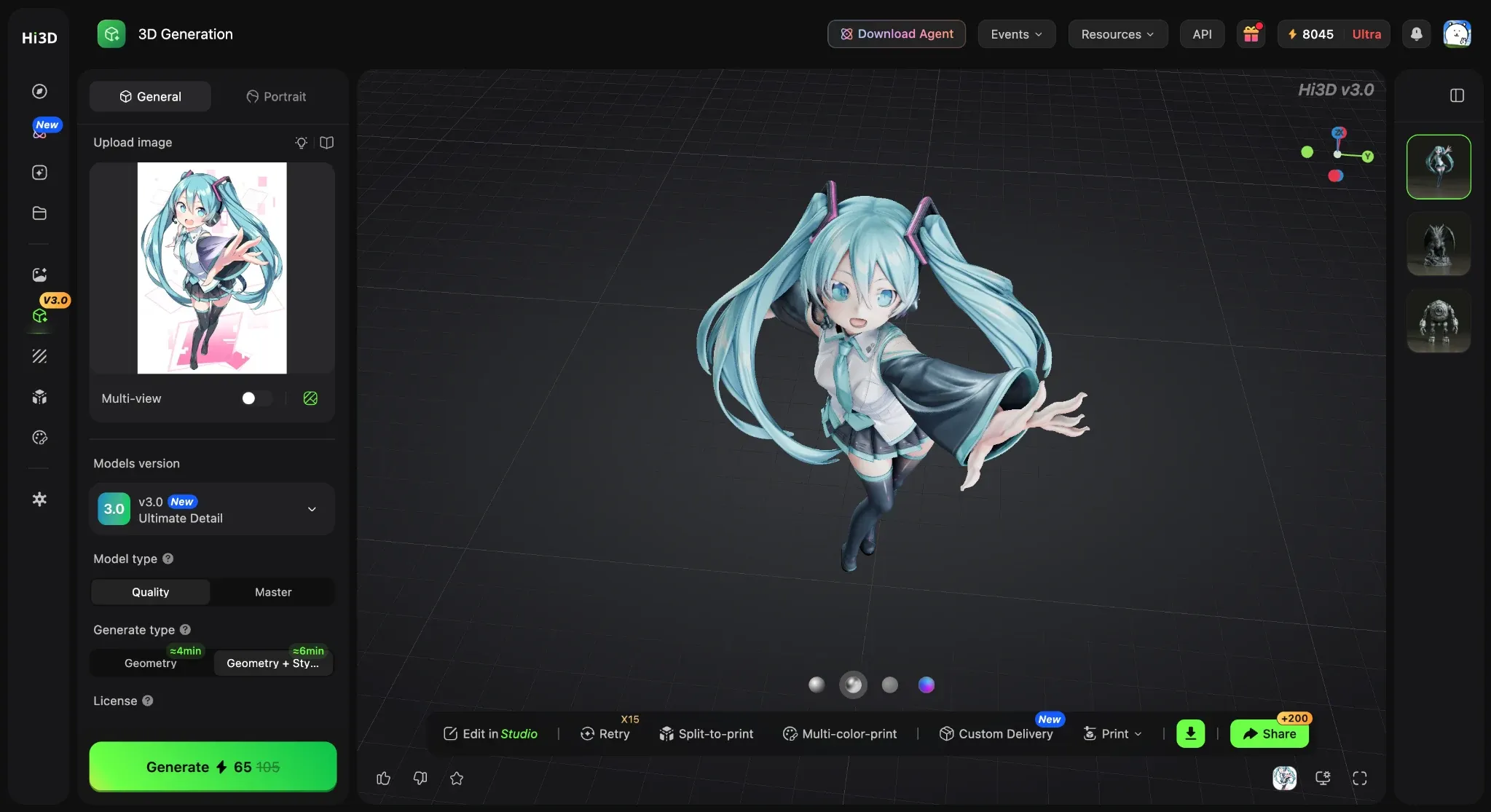
Step 2: Choose V3.0 Master
Select Hi3D V3.0 and choose the Master-quality mode when maximum geometric detail matters.
After generation, rotate the model and inspect:
- thin parts
- back surfaces
- holes
- edges
- small details
- areas hidden in the original image
Step 3: Export the 3D Model
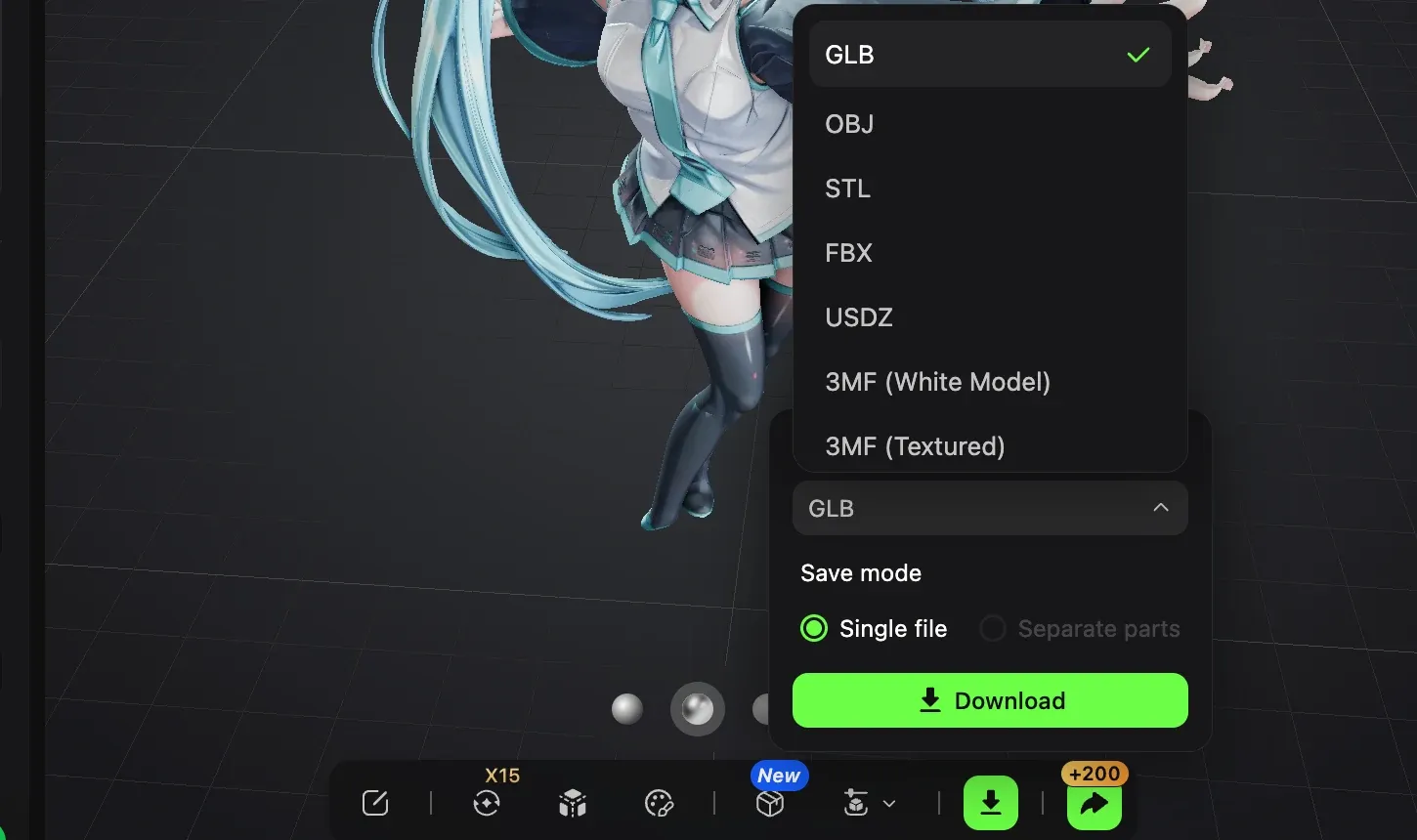
Once the model looks correct, choose an output format based on the next application. The Hi3D export guide explains the main differences between GLB, STL, OBJ, and other supported outputs.
Hi3D currently supports:
OBJ, GLB, STL, FBX, USDZ, 3MF
For example:
- Choose GLB for web or compact real-time use.
- Choose FBX for common game-engine workflows.
- Choose OBJ for general editing.
- Choose STL for conventional 3D printing.
- Choose 3MF when print workflows need richer manufacturing data.
- Choose USDZ for Apple AR workflows.
If the model will be physically printed, you can continue into Hi3D's split workflow or follow a single-image to multi-color 3D print workflow rather than treating export as the final step.
Frequently Asked Questions
What is a 3D model converter?
A 3D model converter changes a model from one file format to another, such as FBX to OBJ or STL to GLB. Some newer tools also use the term more broadly for image-to-3D workflows, where the software first creates geometry from a 2D image and then lets you export that result in a 3D format.
Can I convert a JPG or PNG directly into a 3D model?
Yes, but that is different from normal file conversion. A JPG or PNG does not contain 3D geometry, so an image-to-3D tool has to reconstruct the shape first. The quality of hidden surfaces, thin parts, and fine detail depends on the generation model and the reference image.
Which 3D format is best for 3D printing?
STL is still the simplest choice for standard geometry-only printing. OBJ is useful when texture information matters, while 3MF is often better for modern multi-color or manufacturing workflows because it can store more information in one file.
Final Thoughts
The main decision is simple: are you converting an existing 3D file, or creating a model from an image?
For existing FBX, OBJ, STL, GLB, or CAD files, start with a conventional file converter such as Convert3D or FurniMesh. 3D AI Studio and Meshy add generation and processing tools around the conversion workflow. If your source is a JPG, PNG, illustration, or product photo, you need image-to-3D generation instead.
Hi3D is built around that second workflow: generate geometry from an image, then export it as OBJ, GLB, STL, FBX, USDZ, or 3MF. ImageToSTL takes a narrower approach for logos, reliefs, and heightmap-style prints.
Decide on the destination format first, then choose the tool that matches your source.