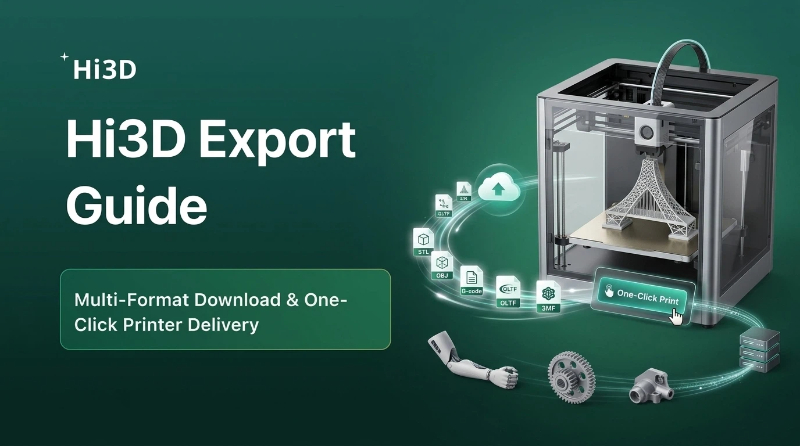
After sculpting, boolean editing, mesh repairing and layout setup in Hi3D Studio, you have two core output options: export your model to a wide range of industry-standard 3D file formats for cross-software workflow, or hit the Send button to directly transmit the optimized print file to your connected FDM printer without extra slicer software.
This guide breaks down every export format’s features, ideal scenarios, compatible tools, and demonstrates the one-click print delivery workflow.
Part 1: All Supported Export Formats – Features & Use Cases
GLB – Full 3D model (Default Selected)
- Core Feature: Binary glTF format, packages mesh, color textures, materials and animations into a single compact file.
- Pros: Small file size, self-contained, fast preview in browsers & most 3D viewers.
- Best Scenarios: Online 3D showcase, AR preview, uploading to social 3D platforms, cross-app lightweight texture model transfer.
- Compatible Tools: Blender, Sketchfab, web AR tools, Unity/Unreal, all mainstream 3D preview websites.
STL – Geometry only
- Core Feature: Pure surface mesh data, NO textures, colors or material information saved. Only stores model geometry shapes.
- Pros: Universal standard for all 3D slicers, ultra-wide compatibility with every FDM resin printer software.
- Best Scenarios: Basic 3D printing without multi-color texture, simple mesh modification in slicers, rapid prototype printing.
- Compatible Tools: Bambu Studio, Cura, PrusaSlicer, Meshlab, any 3D print slicer.
OBJ – Full 3D model
- Core Feature: Separate file bundle – geometry (.obj) + texture image (.png/.jpg) + material config (.mtl). Stores full color & texture data.
- Pros: Fully editable texture mapping, widely supported by professional 3D sculpting software.
- Best Scenarios: Deep secondary retouch in ZBrush/Blender, manual texture repainting, custom figure asset production.
- Compatible Tools: ZBrush, Blender, Maya, Substance Painter, Nomad Sculpt.
3MF – Bambu print format
- Core Feature: Official multi-color print format for Bambu Lab printers. Embeds geometry, color texture, print parameters and support data inside one file.
- Pros: Retains full color information for multi-material AMS printing, carries preset slicing settings, no texture loss during print transmission.
- Best Scenarios: Direct multi-color printing on Bambu Lab H2D/P1/X1 series printers, preserve full print config after layout.
- Compatible Tools: Bambu Studio, all Bambu FDM printers with AMS multi-color system.
USDZ – Full 3D model
- Core Feature: Apple-exclusive AR standard, encapsulates mesh, texture and animation for iOS AR applications.
- Pros: One-click AR preview on iPhone/iPad without extra apps, perfect for Apple ecosystem product display.
- Best Scenarios: iOS AR marketing preview, mobile AR toy visualization, Apple device 3D showcase.
- Compatible Tools: iOS Safari, Apple AR Quick Look, Reality Composer.
FBX – Universal exchange
- Core Feature: Industry-standard cross-engine exchange format, supports high-poly mesh, complex materials, rigging and animation keyframes.
- Pros: Seamless transfer between game engines & VFX software, retains rigged joint data for movable character figures.
- Best Scenarios: Game asset import to Unity/Unreal, animated character production, VFX post-production, joint rig figure design.
- Compatible Tools: Unity, Unreal Engine, Maya, Cinema 4D, Blender, Mixamo.
Format Quick Comparison Table
| File Format | Texture/Color Support | Core Usage | Primary Target User |
|---|---|---|---|
| GLB | ✅ Full color & texture | Lightweight online preview, AR | 3D content creators, story artists |
| STL | ❌ No color/texture | Single-color basic 3D printing | Entry-level 3D printing hobbyists |
| OBJ | ✅ Separate editable textures | Professional secondary sculpting | 3D sculptors, texture designers |
| 3MF | ✅ Full multi-color print data | Bambu multi-color AMS printing | Bambu printer owners, multi-color toy makers |
| USDZ | ✅ AR optimized textures | Apple mobile AR showcase | E-commerce, AR marketing designers |
| FBX | ✅ Material + animation rigs | Game/VFX character development | Game devs, animation artists |
Two Output Workflows: Download Export vs One-Click Send
Workflow A: Export & Download Local Files
- Complete all model editing (sculpt, boolean, repair, smart layout) inside Hi3D Studio.
- Locate the bottom Export button, click to unfold the format dropdown menu.
- Select your target file format according to your downstream workflow (printing, AR, game design, sculpt retouch).
- Tap the Download button, the file will save directly to your local computer storage.
- Open the downloaded file in compatible third-party software for further creation or printing.
Workflow B: One-Click Send to Connected 3D Printer
- Finish Smart Slicing Layout and tweak all print enhancement parameters (layer height, tree supports, surface priority).
- No manual file export or local slicer import required.
- Click the Send button beside Download, the system will auto-transmit optimized 3MF print data to your linked Bambu Lab printer.
- The printer receives full color, layout and support settings instantly, and you can start printing directly on the device or Bambu mobile app.
- Highlight Advantage: Eliminates repeated file import/export steps, avoids texture loss when transferring multi-color models.
Full Export Best Practice Tips
- Default GLB is recommended for quick 3D preview and cross-platform sharing; it balances file size and texture integrity.
- Always choose 3MF instead of STL if you own a Bambu multi-color printer – STL cannot save color data for AMS printing.
- Pick OBJ if you plan to re-paint or resculpt details in ZBrush/Blender; independent texture files support advanced UV editing.
- Use FBX for any character model with joint connectors if you want to import it into game engines for animated content.
- Use the Send one-click print function for official Bambu workflow; it retains all smart layout support settings without re-adjustment.
- Export USDZ only when you need to create AR previews for iPhone & iPad users.
Hi3D Studio’s multi-format export system covers every mainstream demand for 3D toy creators, from lightweight online display, professional post-production, game asset development to direct multi-color 3D printing. You can freely choose local file download for cross-software creation, or utilize the one-click Send function to skip redundant file handling and print your custom figures instantly.