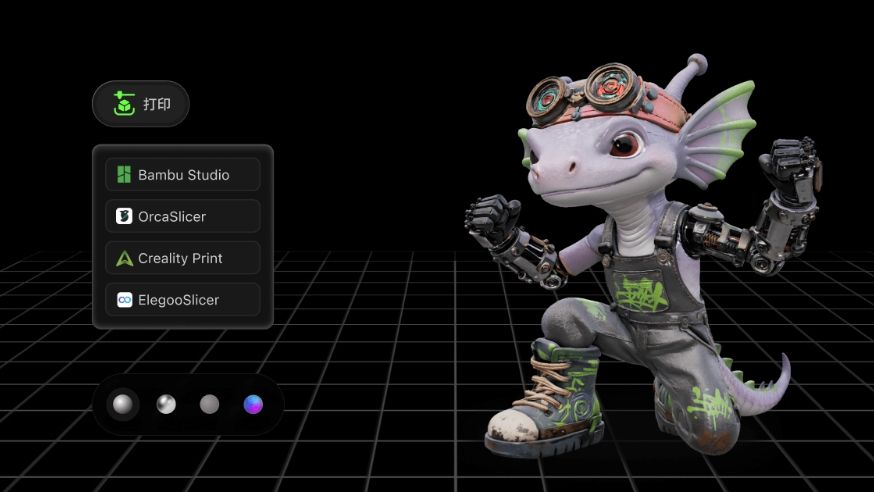
After sculpting, boolean editing, mesh repairing and layout setup in Hi3D Studio, you have two core output options: export your model to a wide range of industry-standard 3D file formats for cross-software workflow, or hit the Send button to directly transmit the optimized print file to your connected FDM printer without extra slicer software.
<br>This guide breaks down every export format’s features, ideal scenarios, compatible tools, and demonstrates the one-click print delivery workflow.
Part 1: All Supported Export Formats – Features & Use Cases
GLB – Full 3D model (Default Selected)
- Core Feature: Binary glTF format, packages mesh, color textures, materials and animations into a single compact file.
- Pros: Small file size, self-contained, fast preview in browsers & most 3D viewers.
- Best Scenarios: Online 3D showcase, AR preview, uploading to social 3D platforms, cross-app lightweight texture model transfer.
- Compatible Tools: Blender, Sketchfab, web AR tools, Unity/Unreal, all mainstream 3D preview websites.
STL – Geometry only
- Core Feature: Pure surface mesh data, NO textures, colors or material information saved. Only stores model geometry shapes.
- Pros: Universal standard for all 3D slicers, ultra-wide compatibility with every FDM resin printer software.
- Best Scenarios: Basic 3D printing without multi-color texture, simple mesh modification in slicers, rapid prototype printing.
- Compatible Tools: Bambu Studio, Cura, PrusaSlicer, Meshlab, any 3D print slicer.
OBJ – Full 3D model
- Core Feature: Separate file bundle – geometry (.obj) + texture image (.png/.jpg) + material config (.mtl). Stores full color & texture data.
- Pros: Fully editable texture mapping, widely supported by professional 3D sculpting software.
- Best Scenarios: Deep secondary retouch in ZBrush/Blender, manual texture repainting, custom figure asset production.
- Compatible Tools: ZBrush, Blender, Maya, Substance Painter, Nomad Sculpt.
3MF – Bambu print format
- Core Feature: Official multi-color print format for Bambu Lab printers. Embeds geometry, color texture, print parameters and support data inside one file.
- Pros: Retains full color information for multi-material AMS printing, carries preset slicing settings, no texture loss during print transmission.
- Best Scenarios: Direct multi-color printing on Bambu Lab H2D/P1/X1 series printers, preserve full print config after layout.
- Compatible Tools: Bambu Studio, all Bambu FDM printers with AMS multi-color system.
USDZ – Full 3D model
- Core Feature: Apple-exclusive AR standard, encapsulates mesh, texture and animation for iOS AR applications.
- Pros: One-click AR preview on iPhone/iPad without extra apps, perfect for Apple ecosystem product display.
- Best Scenarios: iOS AR marketing preview, mobile AR toy visualization, Apple device 3D showcase.
- Compatible Tools: iOS Safari, Apple AR Quick Look, Reality Composer.
FBX – Universal exchange
- Core Feature: Industry-standard cross-engine exchange format, supports high-poly mesh, complex materials, rigging and animation keyframes.
- Pros: Seamless transfer between game engines & VFX software, retains rigged joint data for movable character figures.
- Best Scenarios: Game asset import to Unity/Unreal, animated character production, VFX post-production, joint rig figure design.
- Compatible Tools: Unity, Unreal Engine, Maya, Cinema 4D, Blender, Mixamo.
Format Quick Comparison Table
| File Format | Texture/Color Support | Core Usage | Primary Target User |
|---|---|---|---|
| GLB | ✅ Full color & texture | Lightweight online preview, AR | 3D content creators, story artists |
| STL | ❌ No color/texture | Single-color basic 3D printing | Entry-level 3D printing hobbyists |
| OBJ | ✅ Separate editable textures | Professional secondary sculpting | 3D sculptors, texture designers |
| 3MF | ✅ Full multi-color print data | Bambu multi-color AMS printing | Bambu printer owners, multi-color toy makers |
| USDZ | ✅ AR optimized textures | Apple mobile AR showcase | E-commerce, AR marketing designers |
| FBX | ✅ Material + animation rigs | Game/VFX character development | Game devs, animation artists |
Two Output Workflows: Download Export vs One-Click Send
Workflow A: Export & Download Local Files
- Complete all model editing (sculpt, boolean, repair, smart layout) inside Hi3D Studio.
- Locate the bottom Export button, click to unfold the format dropdown menu.
- Select your target file format according to your downstream workflow (printing, AR, game design, sculpt retouch).
- Tap the Download button, the file will save directly to your local computer storage.
- Open the downloaded file in compatible third-party software for further creation or printing.
Workflow B: One-Click Send to Connected 3D Printer
- Finish Smart Slicing Layout and tweak all print enhancement parameters (layer height, tree supports, surface priority).
- No manual file export or local slicer import required.
- Click the Send button beside Download, the system will auto-transmit optimized 3MF print data to your linked Bambu Lab printer.
- The printer receives full color, layout and support settings instantly, and you can start printing directly on the device or Bambu mobile app.
- Highlight Advantage: Eliminates repeated file import/export steps, avoids texture loss when transferring multi-color models.
Full Export Best Practice Tips
- Default GLB is recommended for quick 3D preview and cross-platform sharing; it balances file size and texture integrity.
- Always choose 3MF instead of STL if you own a Bambu multi-color printer – STL cannot save color data for AMS printing.
- Pick OBJ if you plan to re-paint or resculpt details in ZBrush/Blender; independent texture files support advanced UV editing.
- Use FBX for any character model with joint connectors if you want to import it into game engines for animated content.
- Use the Send one-click print function for official Bambu workflow; it retains all smart layout support settings without re-adjustment.
- Export USDZ only when you need to create AR previews for iPhone & iPad users.
Hi3D Studio’s multi-format export system covers every mainstream demand for 3D toy creators, from lightweight online display, professional post-production, game asset development to direct multi-color 3D printing. You can freely choose local file download for cross-software creation, or utilize the one-click Send function to skip redundant file handling and print your custom figures instantly.